


Standby is available if there are no seats left on your preferred flight. Please see here for details on Waitlist Reservations.
You can check the status of your standby request in real time online.
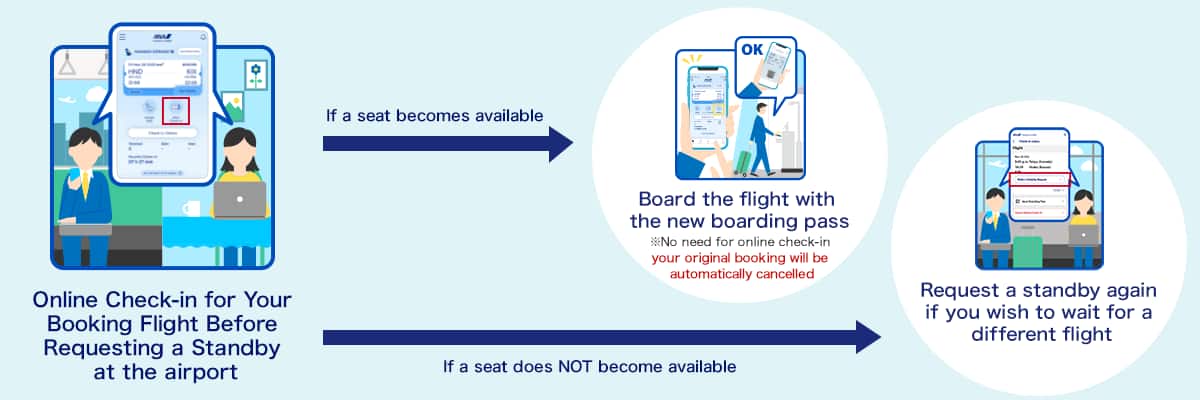
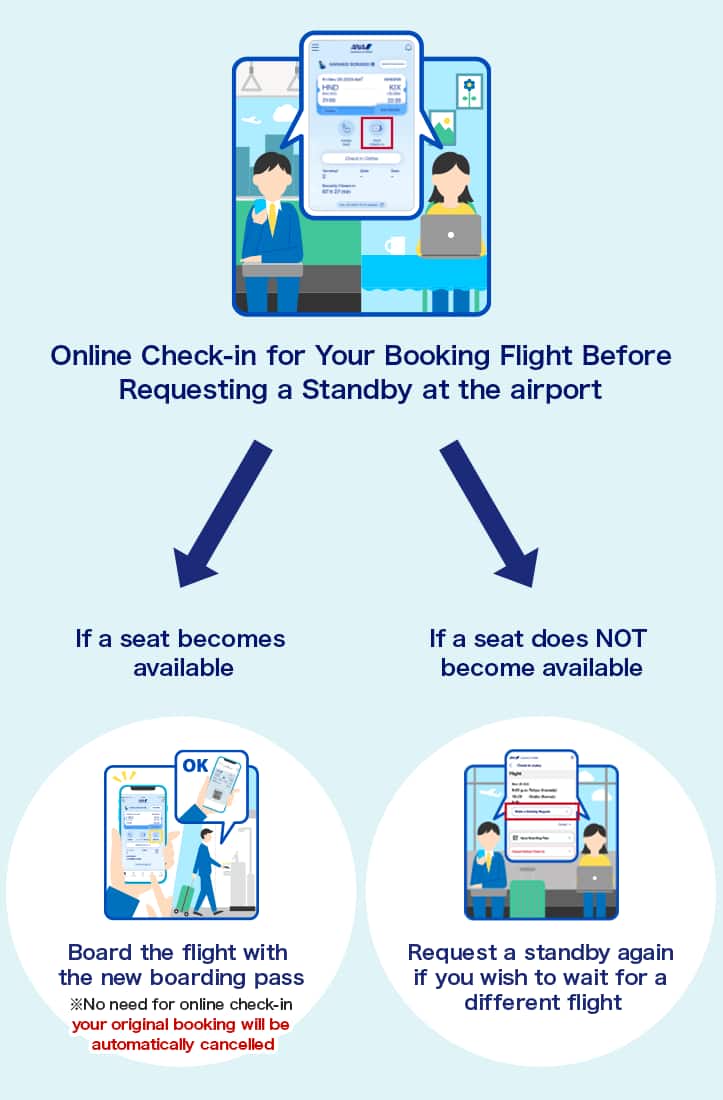
Online Check-in for Your Booking Flight Before Requesting a Standby at the airport
If a seat becomes available: Board the flight with the new boarding pass (No need for online check-in your original booking will be automatically cancelled)
If a seat does NOT become available: Request a standby again if you wish to wait for a different flight

Usage Procedures
Request Online
Please submit a request using the button below.
If your desired flight is full, standby is available from midnight on the departure date up to 20 minutes before the departure time of your desired flight.
If a seat becomes available, please proceed to board the new flight with a new boarding pass.
(Please note that once a seat becomes available, your original flight will be automatically canceled.)
Standby requests require checking in. If you have not yet checked in, please check in using the Make a Standby Request button.
* Upgrade waitlist is not available via the below button. Please apply via the reservation summary confirmation.
Submission Procedures for Customers with a Reserved Flight
Standby after check-in
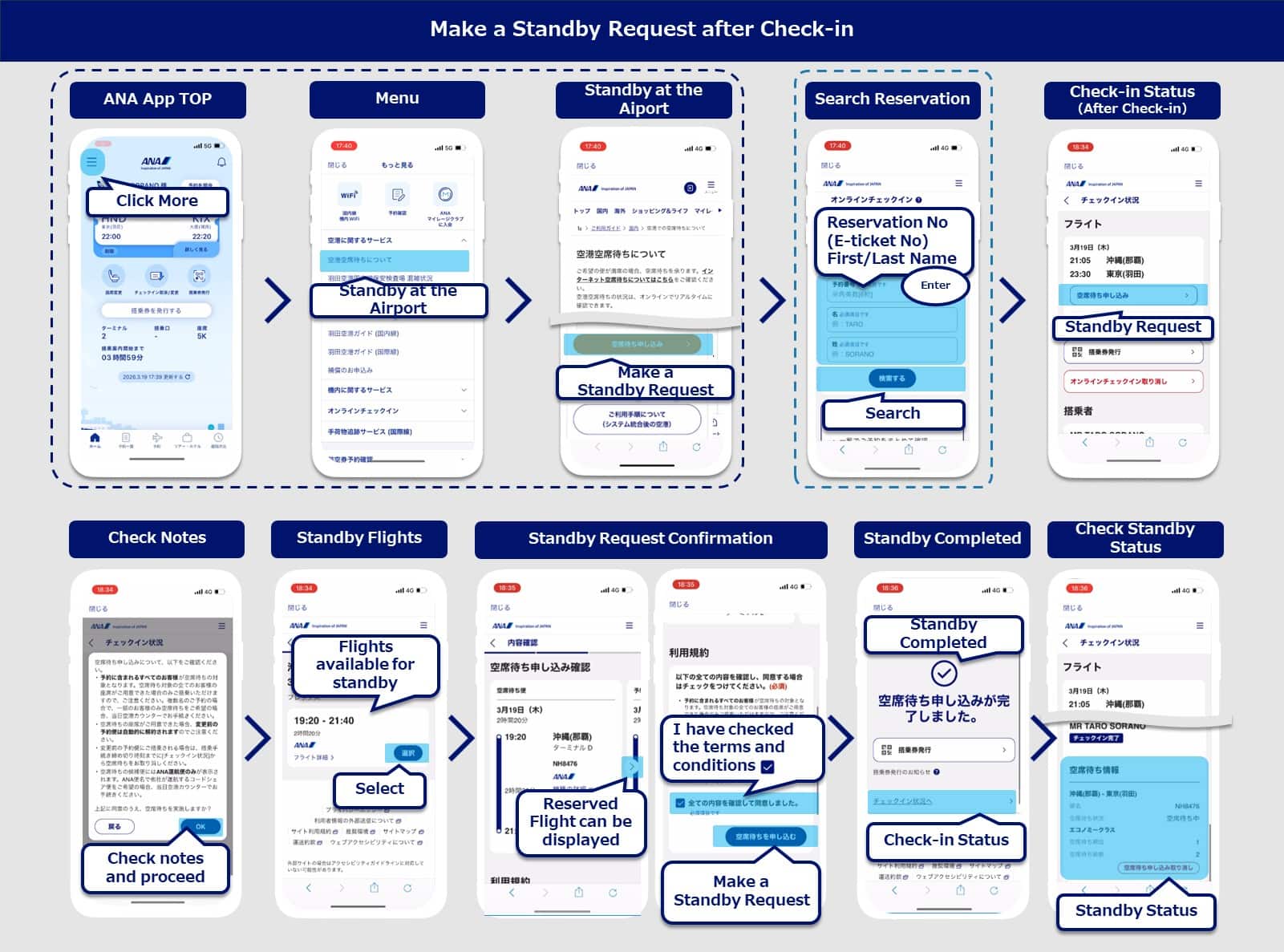
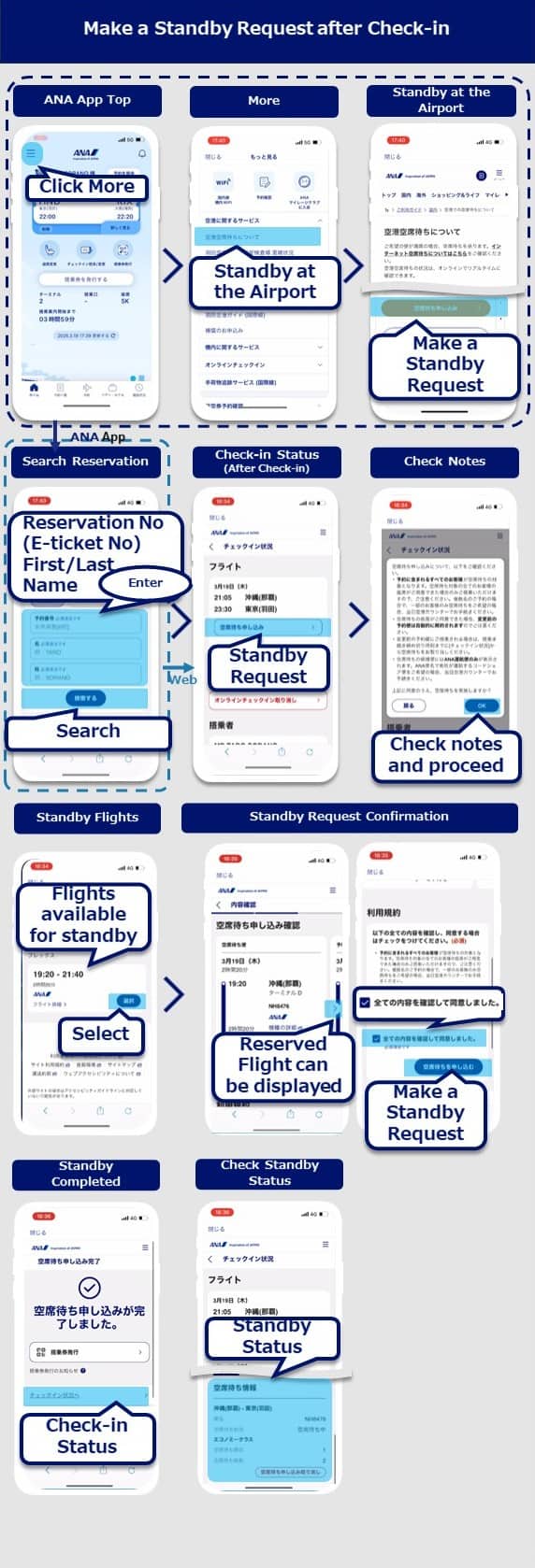
Select "More" on the left corner on the ANA App TOP screen.
Select "Standby at the Airport" under "Airport Services".
Select "Make a Standby Request" from the "Standby at the Airport" page.
Enter your "Reservation Number" or "e-Ticket Number" and "Name" and select "Search"
Select "Make a Standby Request" on the "Check-in Status" screen.
Check the notes and select "OK".
Select the flight to standby on the "Search Results for Standby" screen. Only flights available for standby will be displayed.
Check your standby flight information and the terms and conditions on the "Standby Request Confirmation" screen. Check the terms and conditions and select "Make a standby Request".
Your standby request is completed
Select "Go to Check-in Status", your standby request information is displayed on the "Check-in Status" screen.
Standby Status Check
You can check the status of your standby at the airport requests in real time online.
Notes
You can only make a standby request if the following conditions are met.
You can only make a request one flight at a time (requests cannot be made for multiple flights at the same time)
You can make a standby request only within the same class
- The flight must depart from the same terminal at the same airport on the same departure date as your reserved flight. (You cannot change the departure or arrival airports.)
- If you wish to make an upgrade waitlist request, you must have an Economy Class reservation for the same flight. (You cannot make a waitlist request for a different class on a different flight.)
* Same conditions apply for cancellations and delays caused by bad weather. (i.e, You cannot make a standby request if you do not have a reservation for the same day.)
Notification after making a standby request
If a seat becomes available, you will be notified via the following means sometime from 20 minutes prior to the flight's departure: Push notification from the app, email, SMS (text message), and the digital sign.
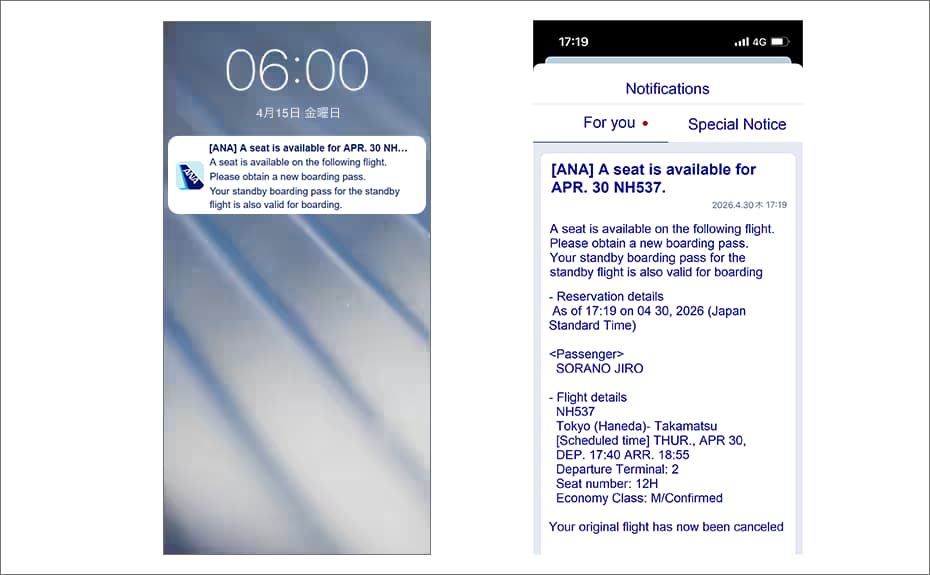
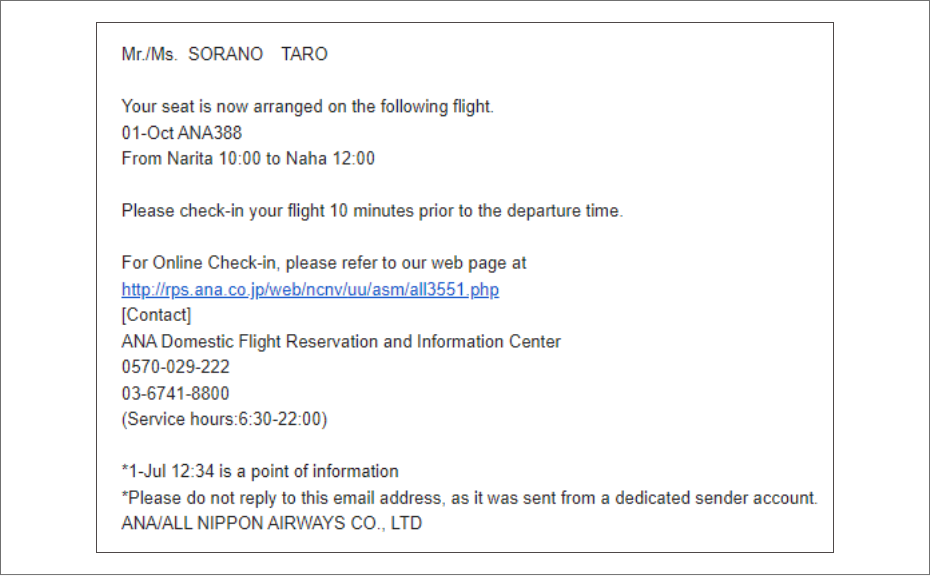
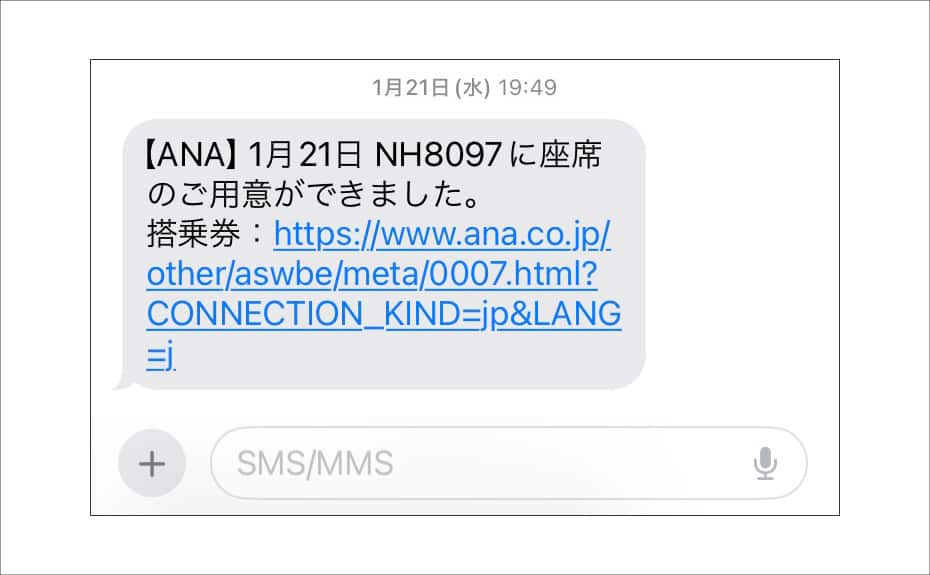
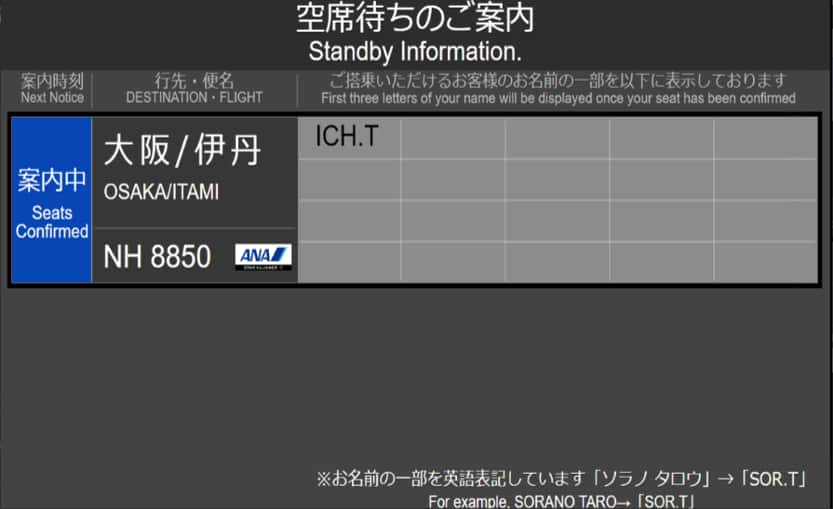
Example of Digital Sign Display
The digital sign can be found at a designated information area past the security checkpoint, and displays part of the names of passengers for whom seats have been confirmed for each flight.
Standby Priority
Standby passengers are called in the following order of status.
Please note that the order of seat confimartion among passengers with the same status will be determined based on the fare type of the flight ticket for which the standby request was made.
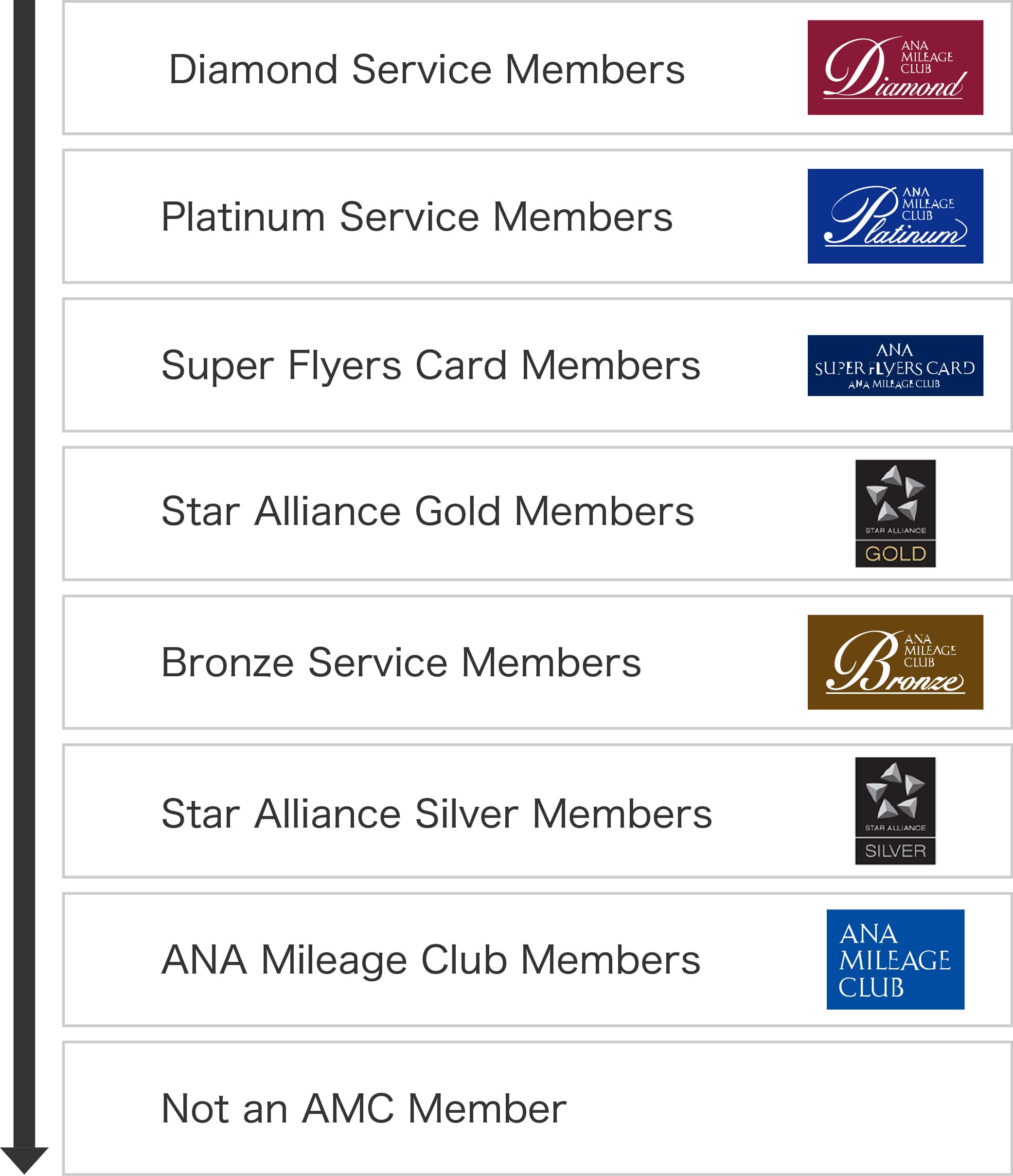
Status
Diamond Service Members
Platinum Service Members
Super Flyers Card Members
Star Alliance Gold Members
Bronze Service Members
Star Alliance Silver Members
ANA Mileage Club Members
Not an AMC Member
Where to Go
If you are able to receive notifications online, you do not need to go anywhere to complete procedures.
When a seat becomes available, receive a new boarding pass on your device from your notification, and board the flight.
If you are checking the digital sign or are unable to obtain your boarding pass, please go to the designated information area.
Baggage
If you wish to check in baggage, please inform a member of staff.
If Seats Do Not Become Available
You will need to board your reserved flight or, if you are continuing the standby, make another request.
Notes
- Please note that once a seat becomes available, your original flight will be automatically canceled.
- Passengers are informed of standby request outcomes in the gate area past security at all airports.
- * Depending on the flight status, the time and location where passengers are informed of their standby request status may change.
Passengers whose flights have been canceled may be notified before other passengers.
Cases in Which Online Standby Requests Are Unavailable
Standby requests may be unavailable or partially restricted for certain customers.
In addition to the below, there may be cases in which standby on web is not available depending on the completion status of procedures.
* "〇" indicates requests can be made for the service; and "×" indicates requests cannot be made.
| Case | Request Online | Request at an Airport Counter |
|---|---|---|
| Passengers whose fares do not allow airport standby | × | × |
| Standby for flights departing from/arriving at an airport different from your reserved flight | × | × |
| Standby for flights departing from a different terminal from your reserved flight | × | × |
| Passengers who purchased their ticket via a travel agency | × | 〇 |
| Group passengers | × | × |
| Passengers with reservations that include international flights | × | 〇 |
| Passengers requiring special assistance | 〇*1 | 〇 |
| Passengers with Cabin Baggage Fees or who have purchased an extra seat | × | × |
| Standby Requests for Select Passengers on a Multi-Party Reservation | × | 〇 |
| Standby when your reserved flight or preferred flight includes a codeshare flight operated by a partner airline*2 | × | 〇 |
| Standby from Economy Class to Premium Class on a reserved flight | 〇*Apply via Reservation Details. | 〇 |
*1 Boarding passes are issued at the airport counter.
*2 For standby requests involving codeshare flights operated by partner airlines:
- Restrictions on web: Certain online procedures may be unavailable after requesting for standby. For changes or refunds, contact the ANA Domestic Reservation Center. For boarding inquiries, please visit the airport counter.
- Results & Boarding: Results of standby requests are sent via email or shown on boarding area displays. When a seat is ready for you, use your standby boarding pass to board. Either the boarding pass for your original flight or standby flight can be used to pass through security.
- Mileage Accrual:If a seat is confirmed for a codeshare flight operated by a partner airline, it may take longer than usual for your miles to be credited. Please note that if your frequent flyer number was not registered at the time of booking, you will need to request a "Retroactive Mileage Registration" after your flight.