


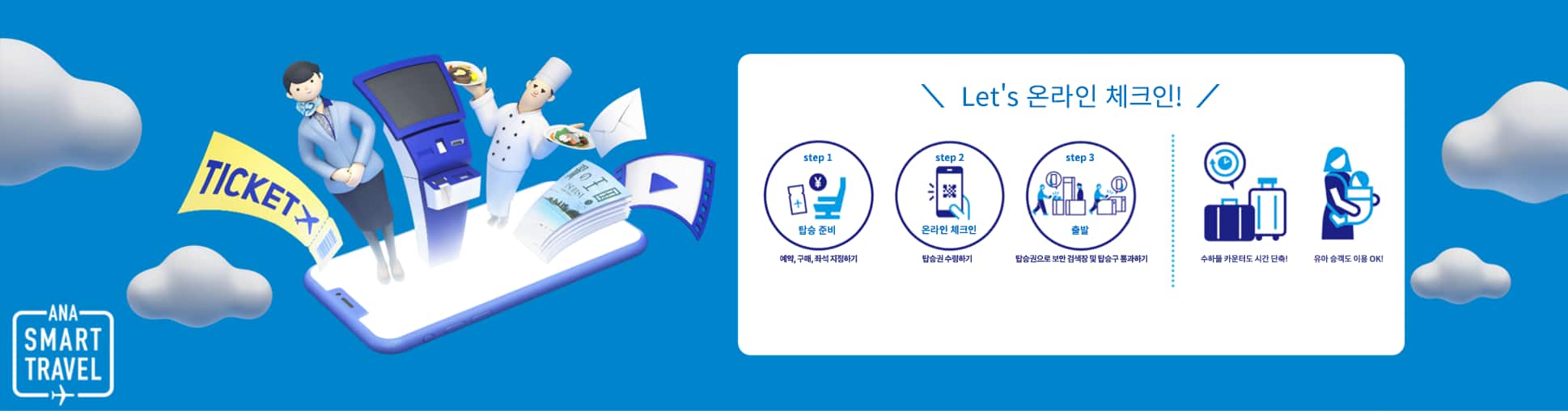
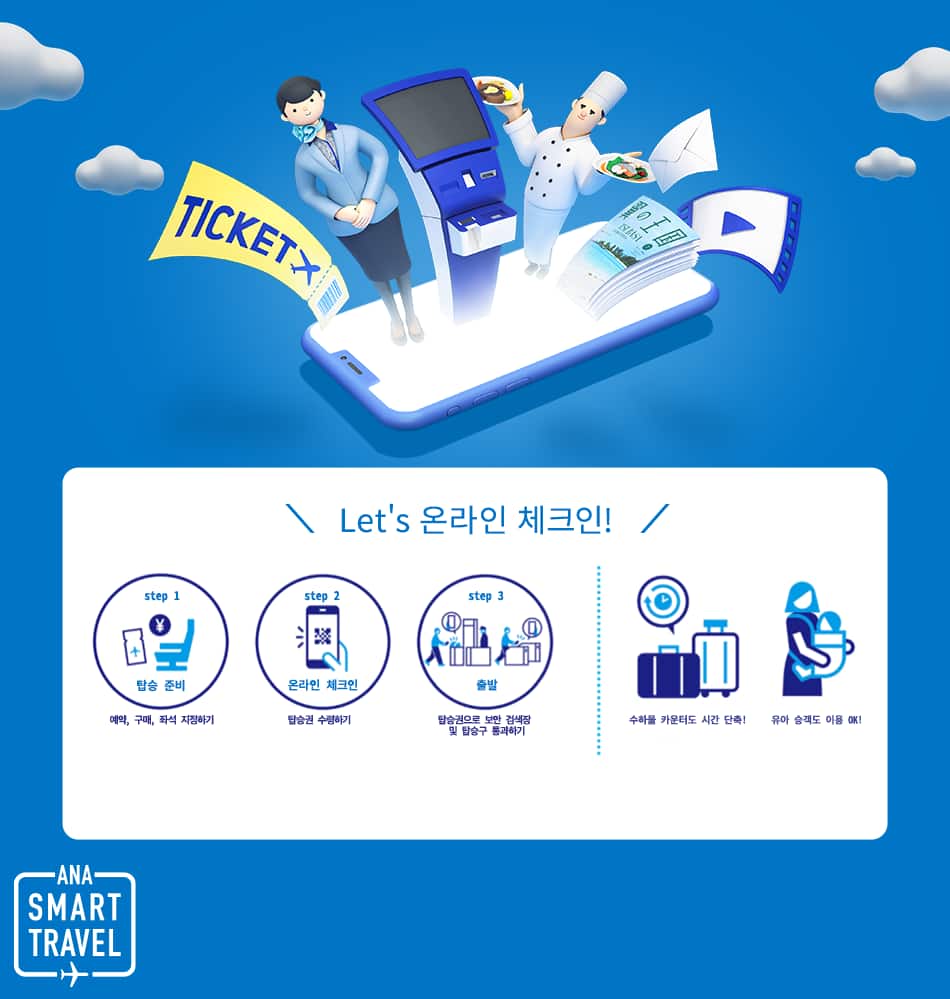
항공편 출발 24시간 전부터 탑승 수속과 탑승권 발행이 가능한 서비스입니다.
주의
- ANA 앱을 이용하시는 경우, 최신 버전으로 업데이트를 부탁드립니다. 웹 브라우저를 이용하시는 경우, 권장 환경이 있습니다. 자세한 내용은 ‘권장 환경 안내’를 확인해 주십시오.
- 일본 국내 제휴 항공사 운항편*1과의 공동 운항편은 항공편을 운항하는 항공사 웹 사이트에서의 온라인 체크인으로 변경됩니다.
- *1.일본 국내 제휴 항공사는 AIRDO(ADO), 솔라시드 에어(SNJ), 스타 플라이어(SFJ), IBEX 에어라인(IBX), 오리엔탈 에어 브리지(ORC)가 대상입니다. 일본 에어 커뮤터 운항편(JAC), 아마쿠사 항공 운항편(AMX)은 대상에서 제외됩니다.
- 온라인 체크인 및 취소 조작은 문의 창구에서는 불가능합니다. 고객께서 직접 수속해 주십시오.
이용 순서 안내
사전에 필요 정보를 등록해야 하는 경우
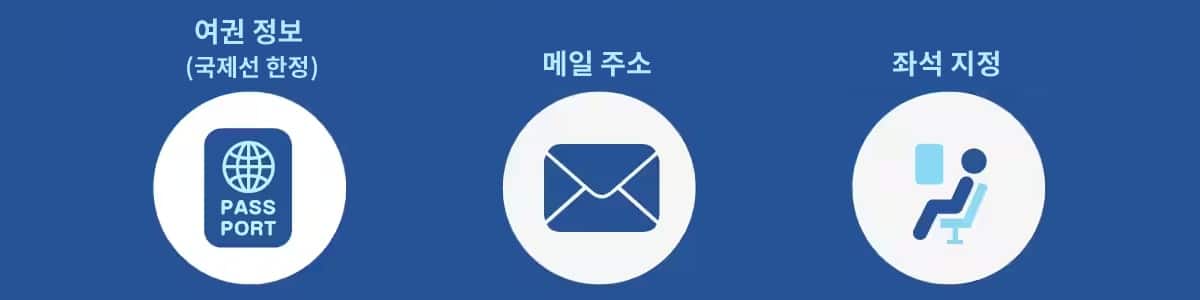
예약 정보를 검색하신 후, 예약 내용 확인 화면에서 여권 정보, 입국 정보(국제선 한정), 메일 주소, 좌석 지정을 등록해 주십시오. 여정의 출발 시간 24시간 전에 체크인 안내 메일이 발송됩니다.
- * 구매하신 운임에 따라 사전 좌석 지정이 가능합니다. 국제선을 포함한 여정이 있는 경우 출발 48시간 전까지, 국내선 여정인 경우 출발 24시간 전까지 완료해 주십시오. 24시간 이내인 경우에는 온라인 체크인 화면에서 좌석 지정을 이용하실 수 있습니다.
온라인 체크인 조작 방법
온라인 체크인의 주요 사례
ANA 앱에서의 온라인 체크인
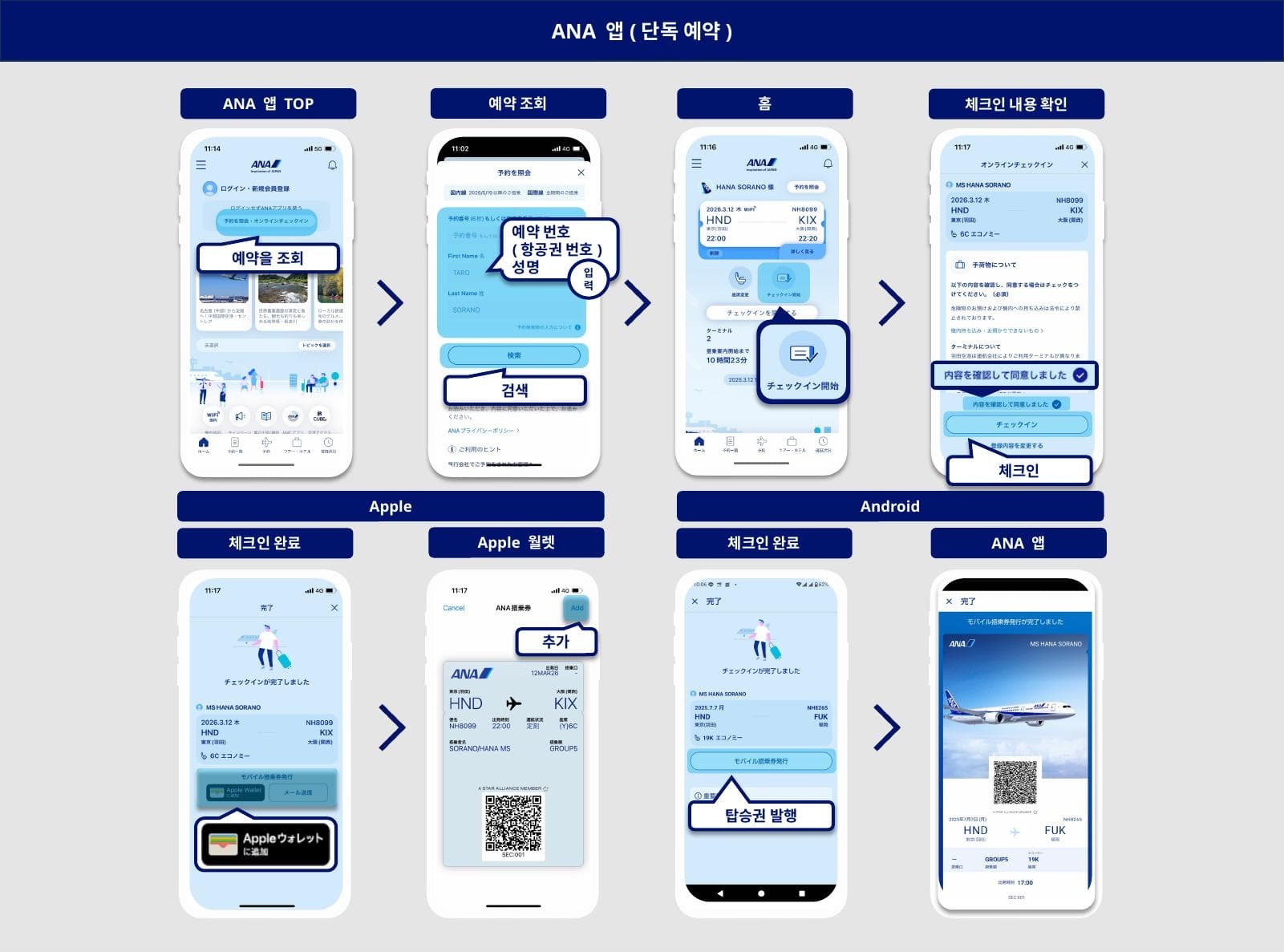
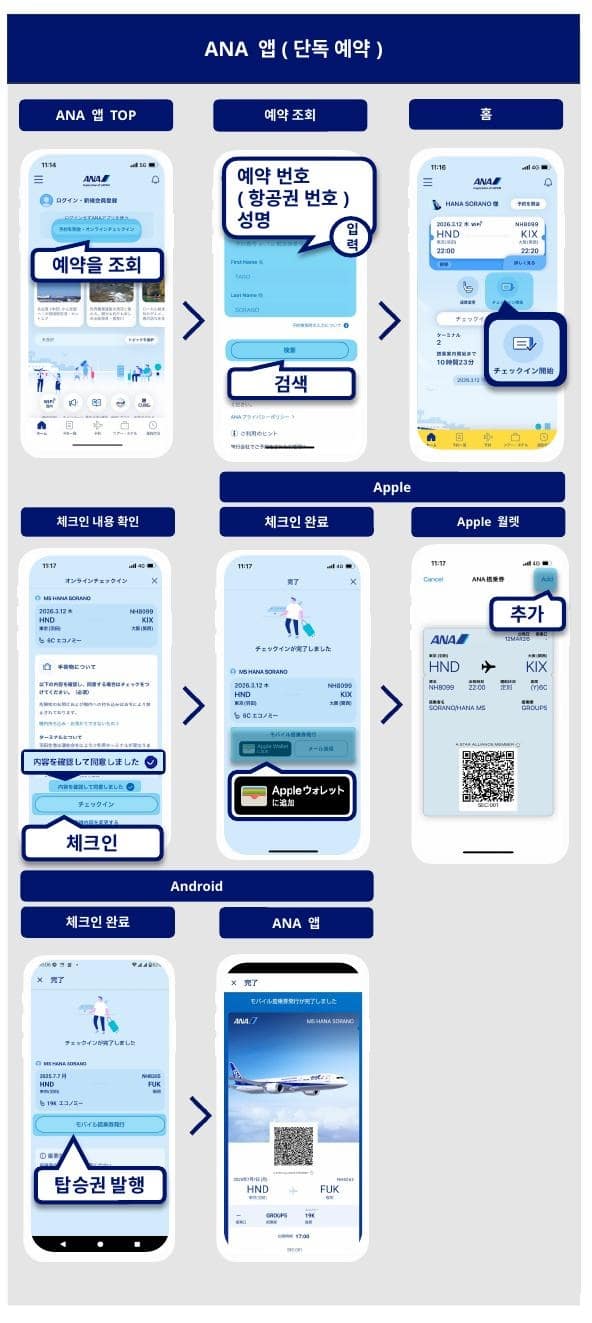
- ANA 앱 TOP 화면에서 ‘예약 조회 및 온라인 체크인’ 버튼을 탭
- ‘예약 번호’ 또는 ‘항공권 번호’와 ‘성명’을 입력하고 ‘검색’을 누른다.
- 홈 화면에서 ‘체크인 시작’을 탭
- 사전에 필요한 정보를 등록했다면, 체크인 정보 및 주의 사항을 확인하고 동의란에 체크. ‘체크인’을 누른다.
- 체크인이 완료되며, Apple의 경우 ‘Apple 지갑에 추가’를 누른다. Apple 지갑 화면에서 추가 버튼을 선택.
Android의 경우 ‘모바일 탑승권 발행’을 누른다. ANA 앱으로의 등록이 완료된다.
웹 브라우저에서의 온라인 체크인
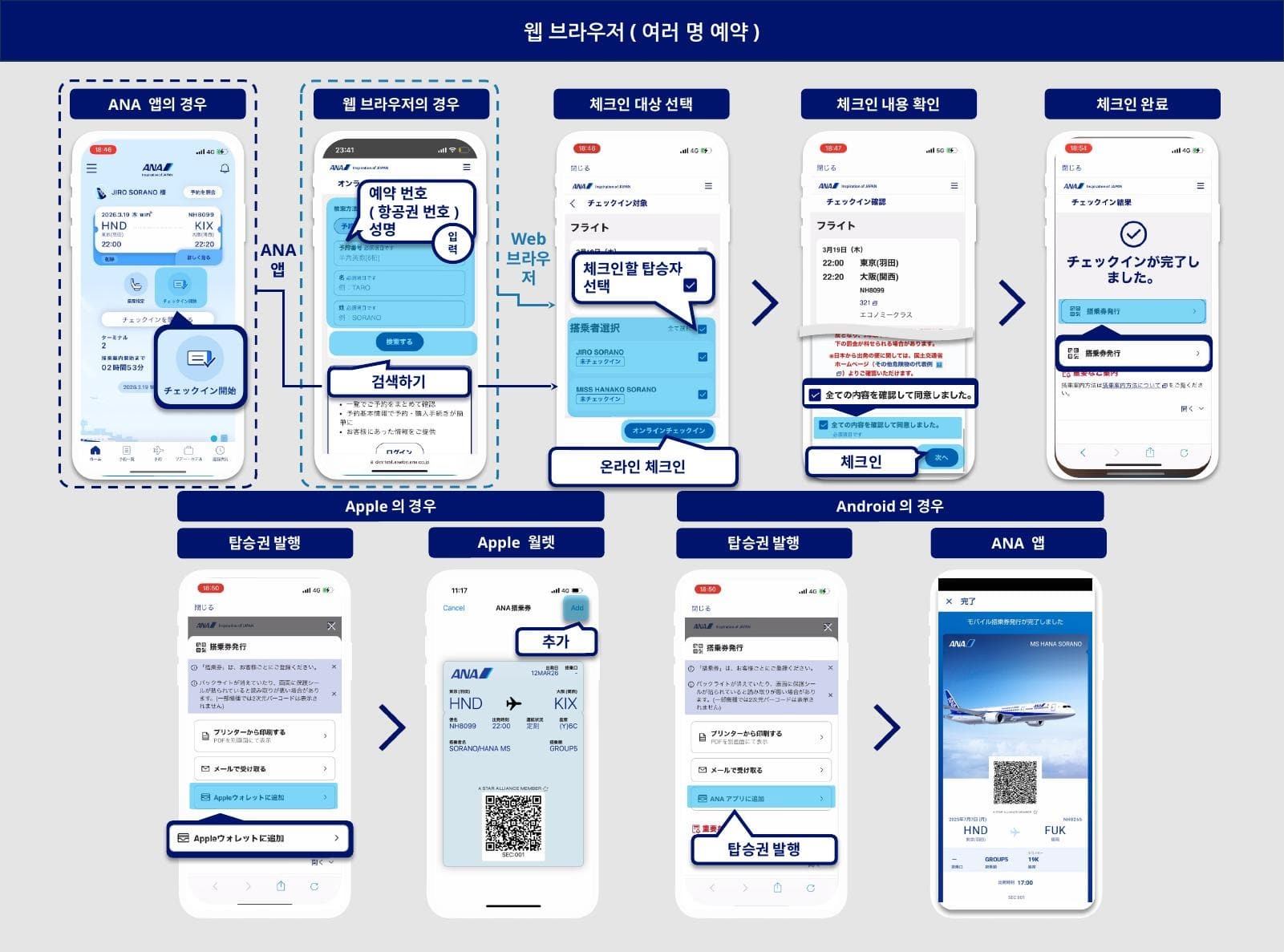
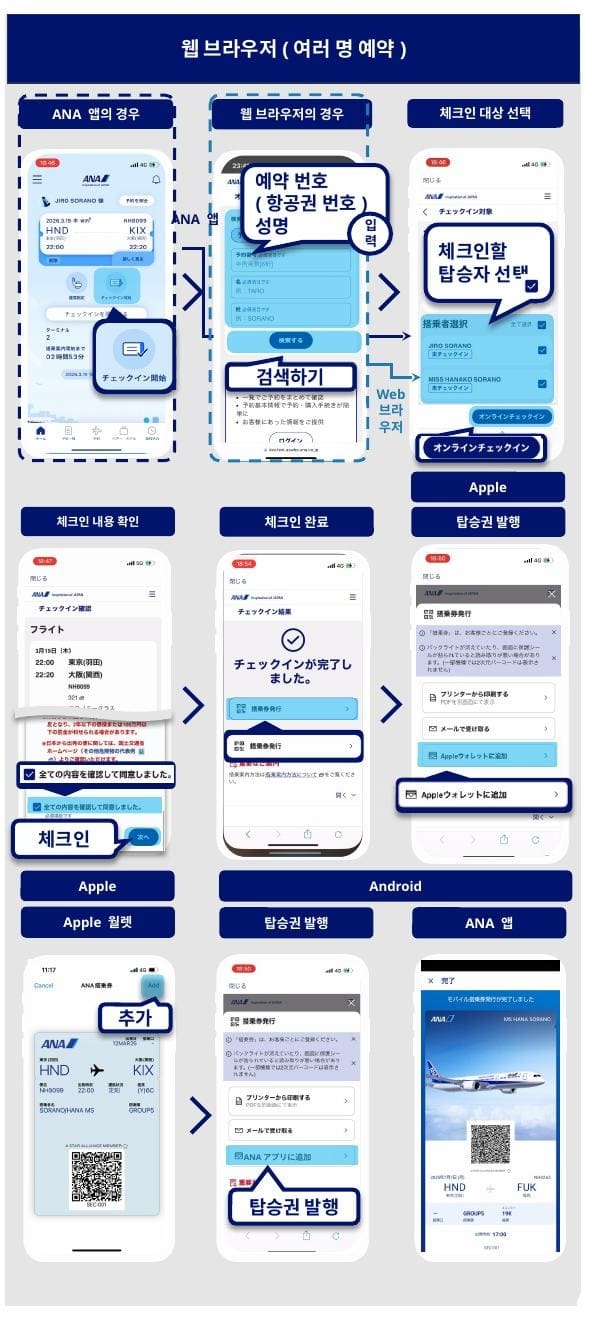
- ANA 앱의 경우, 예약 정보를 불러온 후 ANA 앱 TOP 화면에서 ‘체크인 시작’을 누른다. 여러 명으로 예약한 경우, 웹 브라우저의 ‘체크인 대상 선택’ 화면으로 이동한다.
웹 브라우저의 경우, ‘온라인 체크인’ 화면에서 ‘예약 번호’ 또는 ‘항공권 번호’와 ‘성명’을 입력하고 ‘검색하기’를 누른다. - ‘체크인 대상 선택’ 화면에서 체크인할 탑승자를 선택한다.
- 사전에 필요한 정보를 등록했다면, ‘체크인 확인’ 화면으로 이동한다. ‘체크인 확인’ 화면에서 체크인 정보 및 주의 사항을 확인하고 동의란에 체크. ‘다음’을 누른다.
- 체크인이 완료되면 ‘탑승권 발행’ 버튼을 누른다.
- Apple의 경우, ‘탑승권 발행’ 화면에서 ‘Apple 지갑에 추가’를 누른다. Apple 지갑 화면에서 추가 버튼을 선택.
Android의 경우, ‘탑승권 발행’ 화면에서 ‘ANA 앱에 추가’를 누른다. ANA 앱으로의 등록이 완료된다.
온라인 체크인 취소
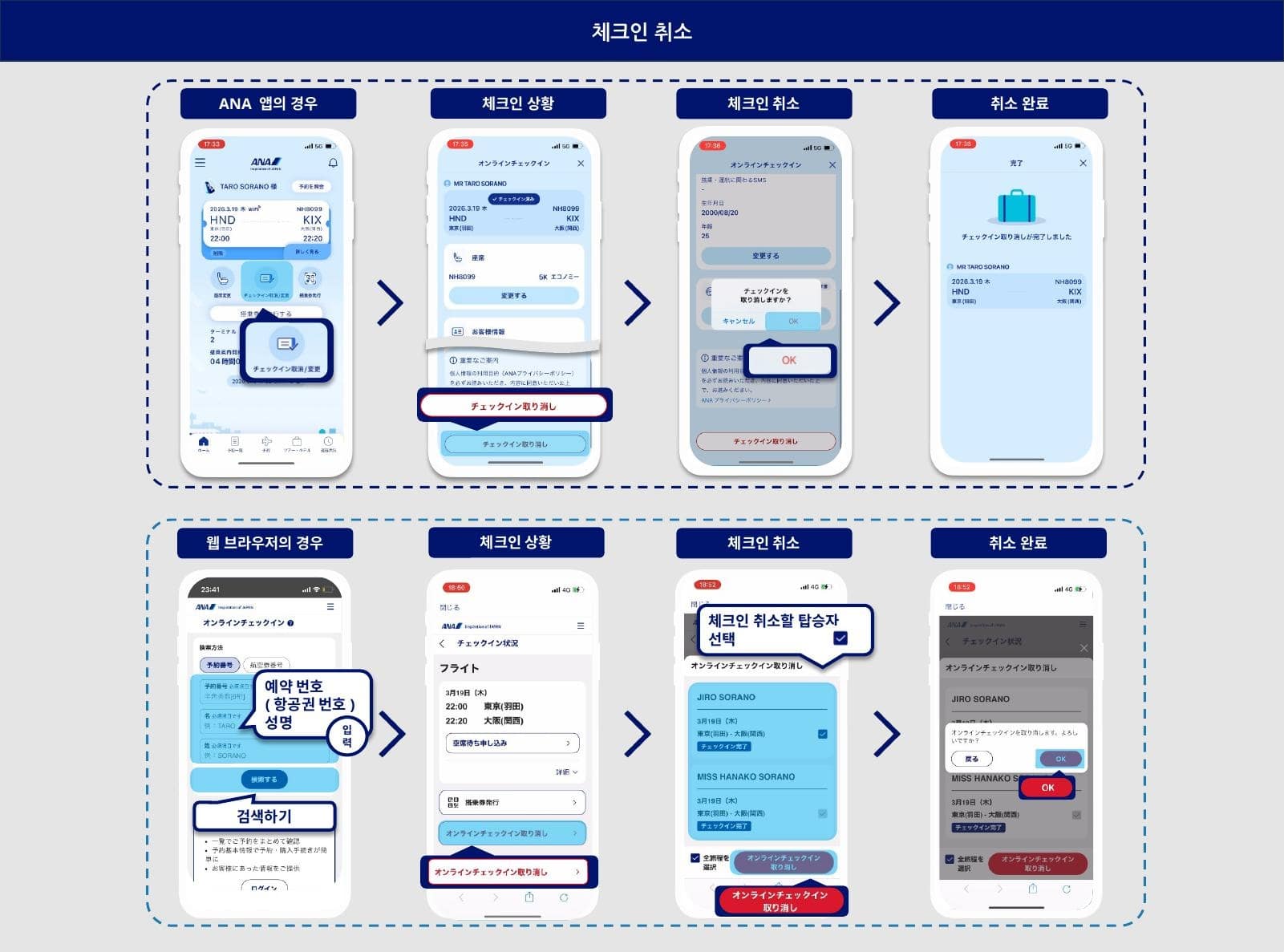
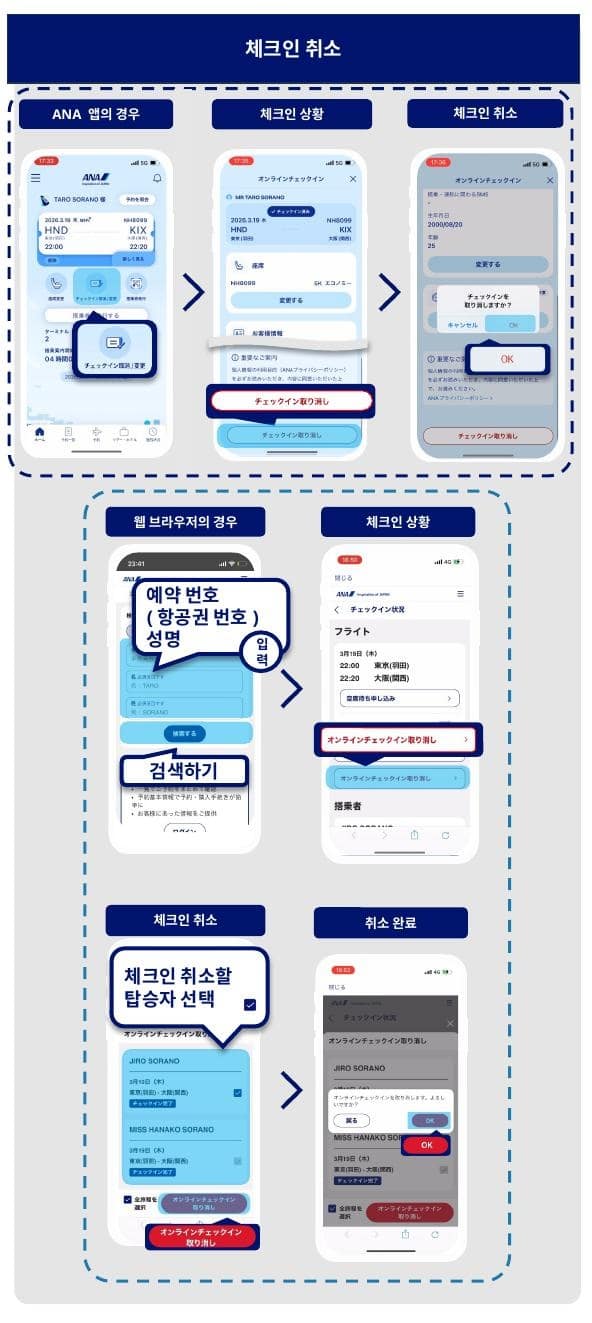
ANA 앱의 경우
- 예약 정보를 불러온 후, ANA 앱 TOP 화면에서 ‘체크인 취소/변경’을 누른다.
- 화면 하부에 있는 ‘체크인 취소’를 누른다.
- 팝업창의 ‘체크인을 취소하시겠습니까?’ 에서 ‘OK’를 누른다.
- 체크인 취소가 완료된다.
웹 브라우저의 경우
- ‘온라인 체크인’ 화면에서 예약 번호 또는 항공권 번호, 성명을 입력하고 ‘검색하기’를 누른다.
- ‘체크인 상황’ 화면에서 ‘온라인 체크인 취소’를 누른다.
- 체크인 취소를 실시할 대상자를 선택하고 ‘온라인 체크인 취소’를 누른다.
- 팝업창의 ‘온라인 체크인을 취소합니다. 계속하시겠습니까?’ 에서 ‘OK’를 누르면 체크인 취소가 완료된다.
별도로 예약한 환승 여정의 추가
별도로 예약된 환승 항공편이 있고 수하물을 최종 목적지까지 위탁하시는 경우, 온라인 체크인 완료 후, ‘여정 추가’를 실행하면 자동 수하물 위탁기(ANA BAGGAGE DROP / ANA BAGGAGE TAG KIOSK)에서 수하물을 최종 목적지까지 위탁하실 수 있습니다.
- * 위탁할 수하물이 없는 고객께서는 ‘여정 추가’를 하지 않으셔도 됩니다. 구간별로 온라인 체크인을 진행하면 탑승하실 수 있습니다. (단, 환승 필요 시간을 충족해야 합니다)
- * 국제선으로의 환승 여정이 포함된 경우에는 자동 수하물 위탁기를 이용하실 수 없습니다. 번거로우시겠지만 공항 카운터로 와 주십시오.
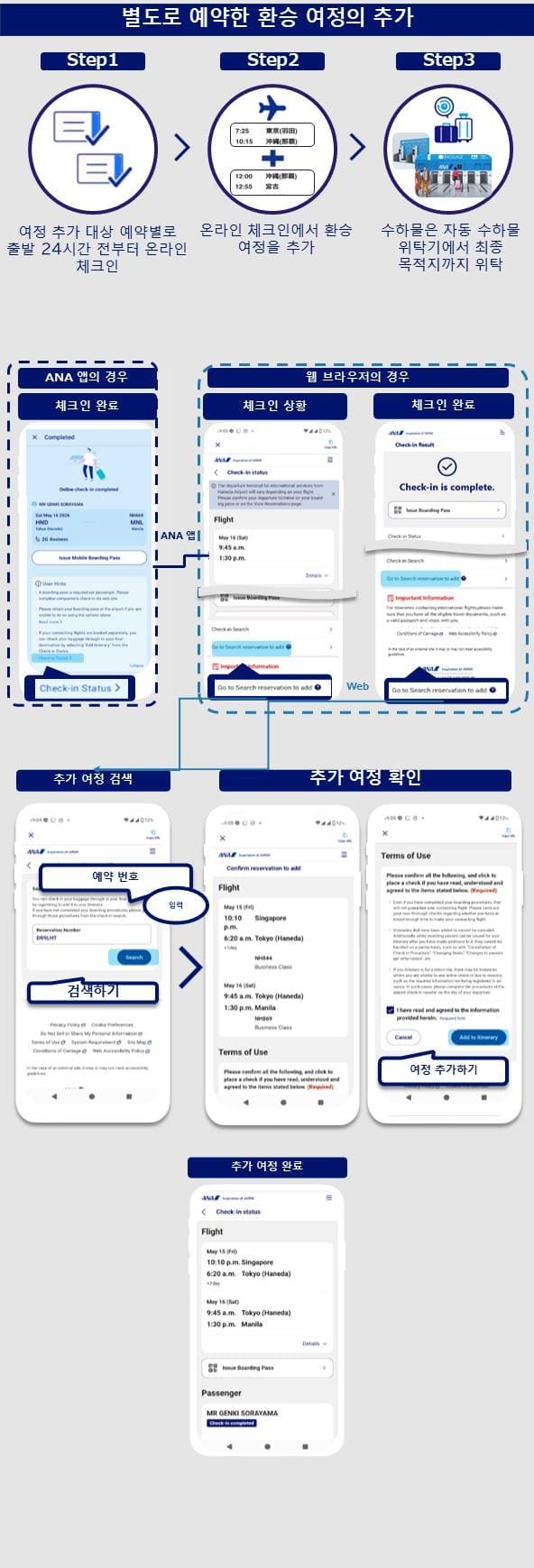
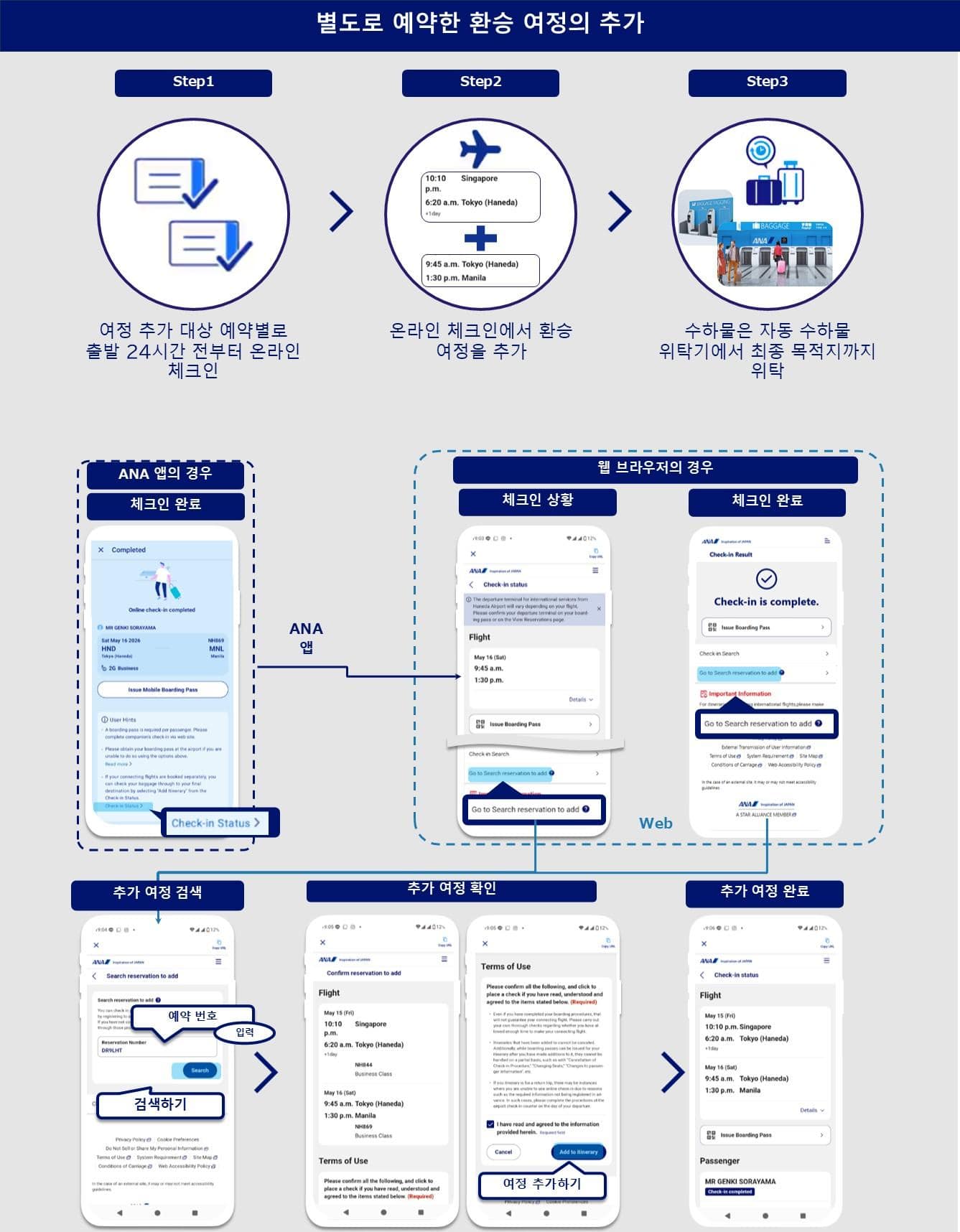
- ANA 앱: ‘체크인 완료’ 화면에서 ‘체크인 상황 상세 정보 바로 가기’를 누른다. 자동으로 이동하는 ‘체크인 상황’ 화면에서 화면 하단에 있는 ‘추가 여정 검색으로 이동’을 누른다.
- 웹 브라우저: ‘체크인 상황’ 화면 또는 ‘체크인 완료’ 화면 하단에 있는 ‘추가 여정 검색으로 이동’을 누른다.
- ‘추가 여정 검색’ 화면에서 예약 번호를 입력하고 ‘검색하기’를 누른다.
- ‘추가 여정 확인’ 화면에서 추가 후 여정 및 이용 약관을 확인하고 ‘여정 추가하기’를 누른다.
- 여정 추가가 완료되면 자동으로 ‘체크인 상황’ 화면으로 이동한다.
대상 조건
본 기능을 이용하려면 다음 조건을 충족해야 합니다.
- 사전 조건
환승 예정인 모든 여정의 온라인 체크인이 이미 완료되어 있을 것 - 추가 가능한 여정의 조합
- NH 그룹 운항편+NH 그룹 운항편
- NH 그룹 운항편+국내 제휴 항공사 운항편
- 추가할 수 없는 여정의 조합
- NH 그룹 운항편+타 항공사 운항편
- 국내 제휴 항공사 운항편+NH 그룹 운항편
이용 시 주의 사항
- 환승 여정 추가가 완료되었더라도 그로 인해 환승이 보증되는 것은 아닙니다. 고객께서 직접 환승에 필요한 시간을 충족하고 있는지 충분히 확인하시기 바랍니다.
- * ‘⇔’는 공항 간의 환승을 나타냅니다.
- 한 번 추가한 여정은 해제할 수 없습니다. 또한, 여정 추가 후에는 탑승권 발행은 가능하지만 ‘체크인 취소’, ‘좌석 변경’, ‘탑승자 정보 변경’ 등 일부 조작을 할 수 없습니다.
- 오는 여정이 있는 경우, 사전에 필요한 정보가 등록되지 않은 등의 이유로 온라인 체크인을 이용하실 수 없는 경우가 있습니다. 그러한 경우, 번거로우시겠지만 당일 공항 카운터 또는 자동 체크인기에서 수속해 주시기 바랍니다.
온라인 체크인 주의 사항
일본 국내 제휴 항공사 운항편과의 공동 운항편 체크인 안내
제휴 항공사 운항편*1과의 공동 운항편은 항공편을 운항하는 항공사 웹 사이트에서의 온라인 체크인으로 변경됩니다.
메일 등으로 안내하는 ‘체크인 안내’에 기재된 URL을 통해 수속해 주시기 바랍니다.
ANA 웹 사이트/ANA 앱에서의 온라인 체크인은 이용하실 수 없습니다.
그리고 제휴 회사에서 운항하는 공동 운항편인 경우, 서비스는 운항사의 규정이 적용됩니다.
또한, 운항 상황에 관한 안내도 운항사에서 전송하게 됩니다.
공동 운항편의 탑승 수속 및 서비스의 자세한 내용은 공동 운항편 안내를 확인해 주십시오.
-
*1.제휴 항공사는 AIRDO(ADO), 솔라시드 에어(SNJ), 스타 플라이어(SFJ), IBEX 에어라인(IBX), 오리엔탈 에어 브리지(ORC)가 대상입니다. 일본 에어 커뮤터 운항편(JAC), 아마쿠사 항공 운항편(AMX)은 대상에서 제외됩니다.
ANA 앱에서의 일본 국내 제휴 항공사 운항편과의 공동 운항편 온라인 체크인
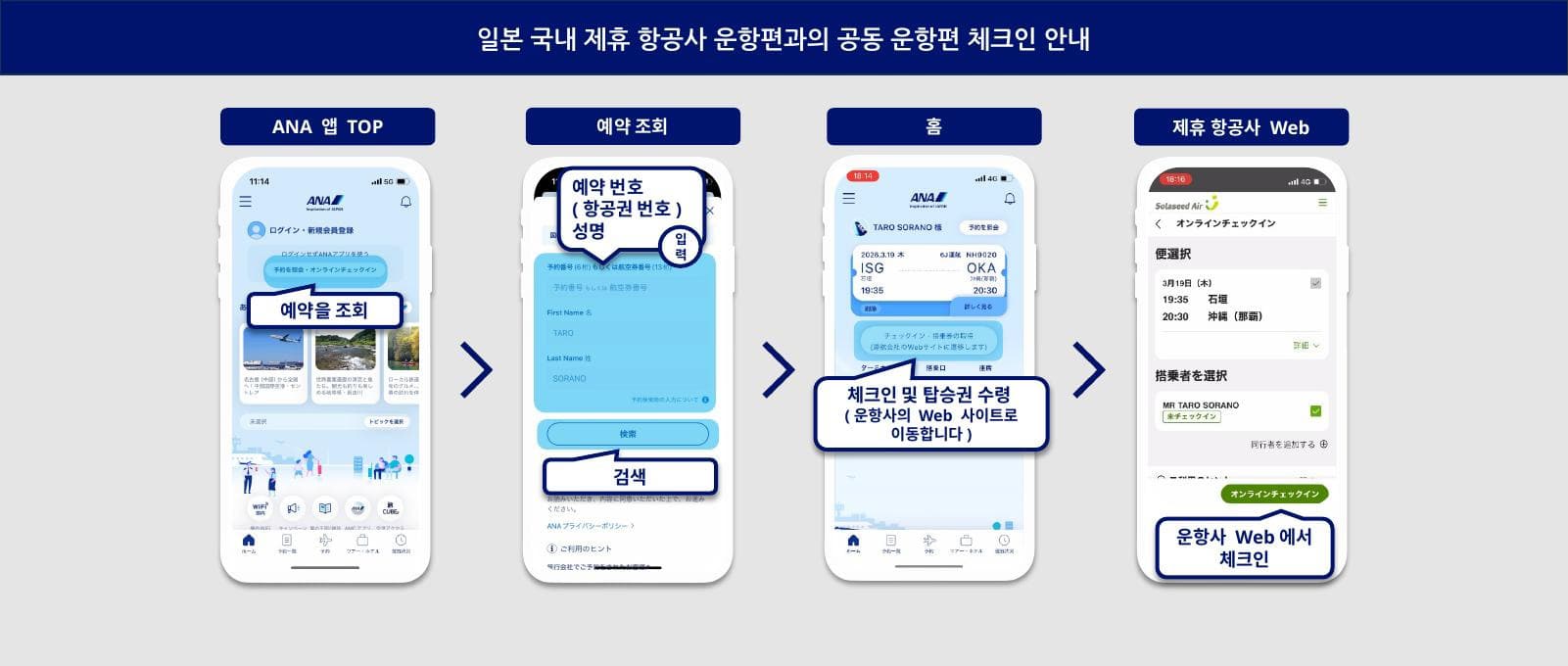
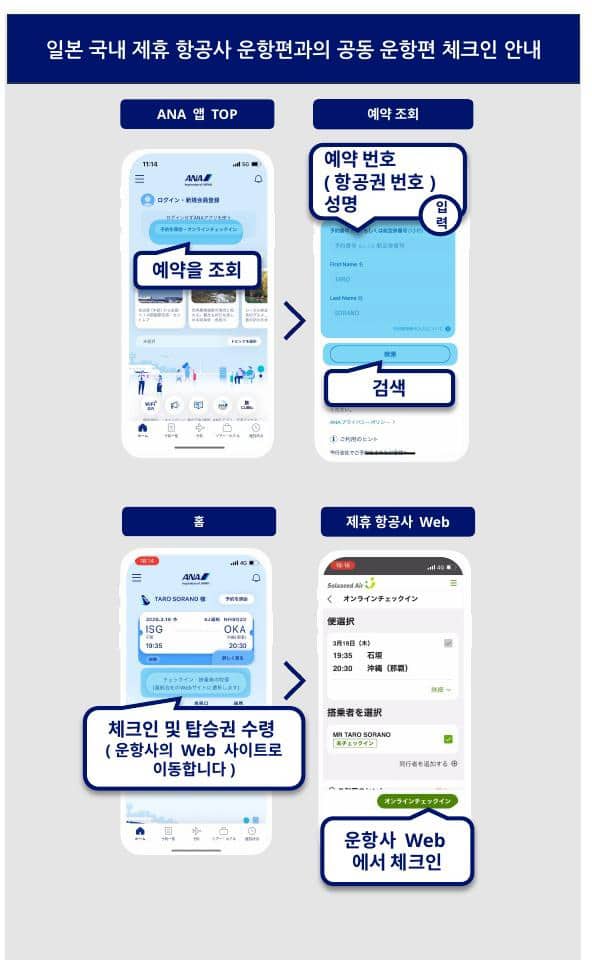
- ANA 앱 TOP 화면에서 ‘예약 조회 및 온라인 체크인’ 버튼을 탭
- ‘예약 번호’ 또는 ‘항공권 번호’와 ‘성명’을 입력하고 ‘검색’을 누른다.
- 홈 화면에서 ‘체크인 및 탑승권 수령(운항사의 Web 사이트로 이동합니다)’을 선택.
- 운항사 웹 사이트에서 체크인을 완료한다.
탑승권 준비 안내
탑승권 발행 및 표시 방법
온라인 체크인 후, 모바일 단말기(모바일 탑승권), 프린터로 인쇄, 공항에서 수령 중 한 가지 방법으로 탑승권을 준비해 주십시오. 출발 공항마다 이용 가능한 탑승권의 종류가 다릅니다.
단, 출발 공항의 시설 사정상의 이유 또는 탑승에 대한 확인 사항이 있는 고객의 경우에는 출발 당일 공항 카운터에서 탑승권을 전달해 드립니다.
모바일 단말기(모바일 탑승권)
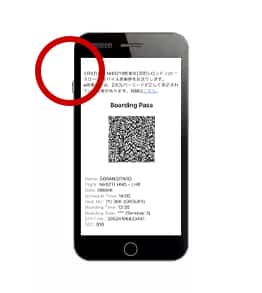
모바일 단말기에 표시된 2차원 바코드로 탑승이 가능합니다. (인쇄 불가)
- 메일로 수령
-
등록하신 메일 주소로 모바일 탑승권을 보내 드립니다. 메일 내의 모바일 탑승권 이미지(또는 URL에서 다운로드)를 이용하시기 바랍니다.
- Wallet으로 수령
-
Apple이 제공하는 iPhone(iOS 9.0 이상) 앱 Wallet에 모바일 탑승권을 등록할 수 있습니다.
- ANA 앱으로 수령
-
Apple 이외의 기기를 이용하시는 고객은 ANA 앱에 모바일 탑승권을 등록하실 수 있습니다.
이용 시의 주의 사항
- 모바일 탑승권 제시 시 화면이 어둡거나 보호 필름이 붙어 있으면 인식이 원활하지 않을 수 있습니다.
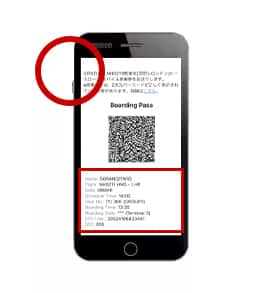
- 2차원 바코드와 항공편 정보 및 고객 정보가 표시된 화면을 제시해 주시기 바랍니다. 2차원 바코드만 갖고 계실 경우, 통과되지 않을 수 있습니다.
- 일부 기종에서는 설정에 따라 2차원 바코드가 작게 표시되는 경우가 있습니다.
이때 2차원 바코드가 인식되지 않을 경우, 공항 직원이 바코드의 사이즈 변경 등을 요청할 수 있습니다.
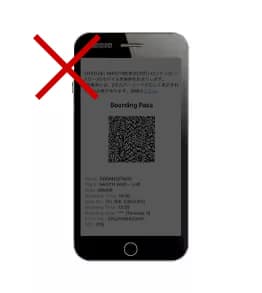
프린터로 인쇄
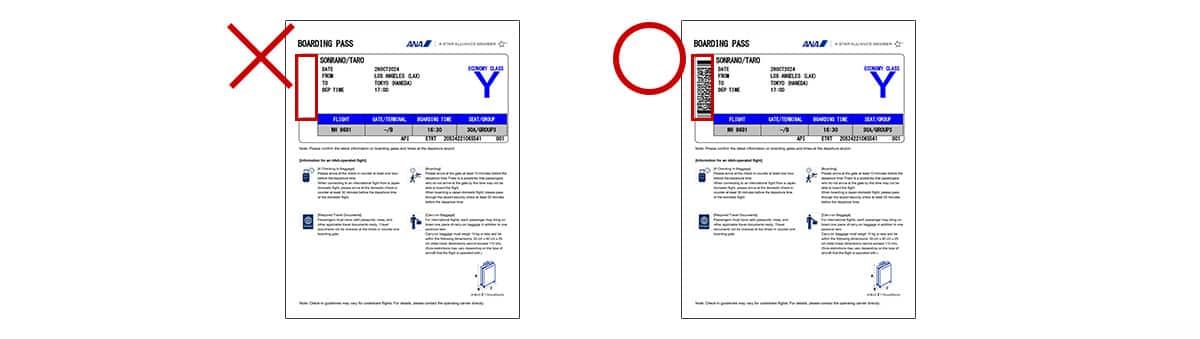
탑승권을 프린터로 인쇄하여 출발 당일에 지참하시기 바랍니다.
인쇄 시 주의 사항
탑승권에는 2차원 바코드가 인쇄되어 있어야 합니다.
공항에서 수령
탑승 수속 접수 마감 시각은 아래와 같습니다. 접수 마감 시각 전까지 탑승권을 수령해 주십시오. 이 시간이 지나면 수속을 진행하실 수 없으므로 주의해 주십시오.
- 국내선
-
출발 20분 전
- 국제선
-
출발 60분 전
- * 국제선의 각 공항별 체크인 카운터 영업시간은 ANA 국제공항 체크인 카운터 영업시간을 확인해 주십시오.
자동 체크인기에 대해서는 다음 내용을 확인해 주십시오.
국제선에서 이용 가능한 탑승권의 종류 안내
출발 공항마다 이용 가능한 탑승권의 종류가 다릅니다. 사전에 확인해 주십시오.
- ANA 그룹이 운항하는 국제선에서 타 항공사로 환승하시는 고객께서는 스루 체크인이 처리된 경우에도 환승 공항에서 탑승권을 수령하실 수 없습니다. 프린터로 인쇄하거나 출발 당일 ANA 그룹 운항 항공편 출발 공항에서 미리 수령해 주십시오.
- 다음 공항은 모바일 탑승권 이용이 불가능합니다.
사전에 탑승권을 프린터로 인쇄해 오시거나, 출발 당일 ANA 그룹 운항편 출발 공항에서 수령해 주십시오. - 멕시코시티
- 블라디보스토크
- 다롄
- 다음 공항에서는 모바일 탑승권 및 프린터로 인쇄한 탑승권 모두 이용하실 수 없습니다.
출발 당일 ANA 그룹 운항편 출발 공항에서 수령해 주십시오.- 서울(김포)
- 하노이
- 뭄바이
- 델리
- 자카르타
- 마닐라
공항에서의 흐름 안내
공항에서의 자세한 흐름에 대해서는 다음을 확인해 주십시오.
수하물
탑승 수속 마감 시각까지 자동 수하물 위탁기 또는 수하물 카운터에서 위탁해 주십시오.
보안 검색장
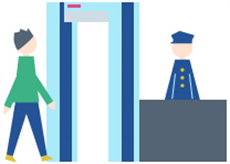
시간에 여유를 두고 오시기 바랍니다.
탑승구
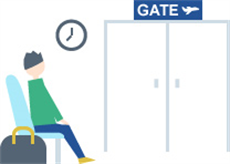
탑승구에는 출발 10분 전까지 와 주시기 바랍니다. 이 시간이 지나면 탑승하실 수 없습니다.