Get your digital card immediately
No enrollment or annual fees
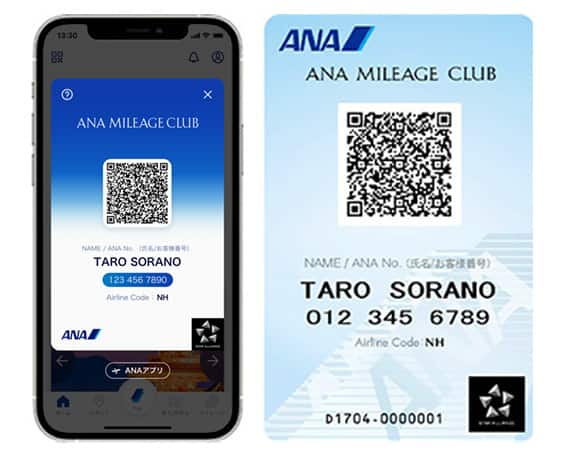
ANA Mileage Club Card
Earn more miles for your money
With credit function
ANA Card
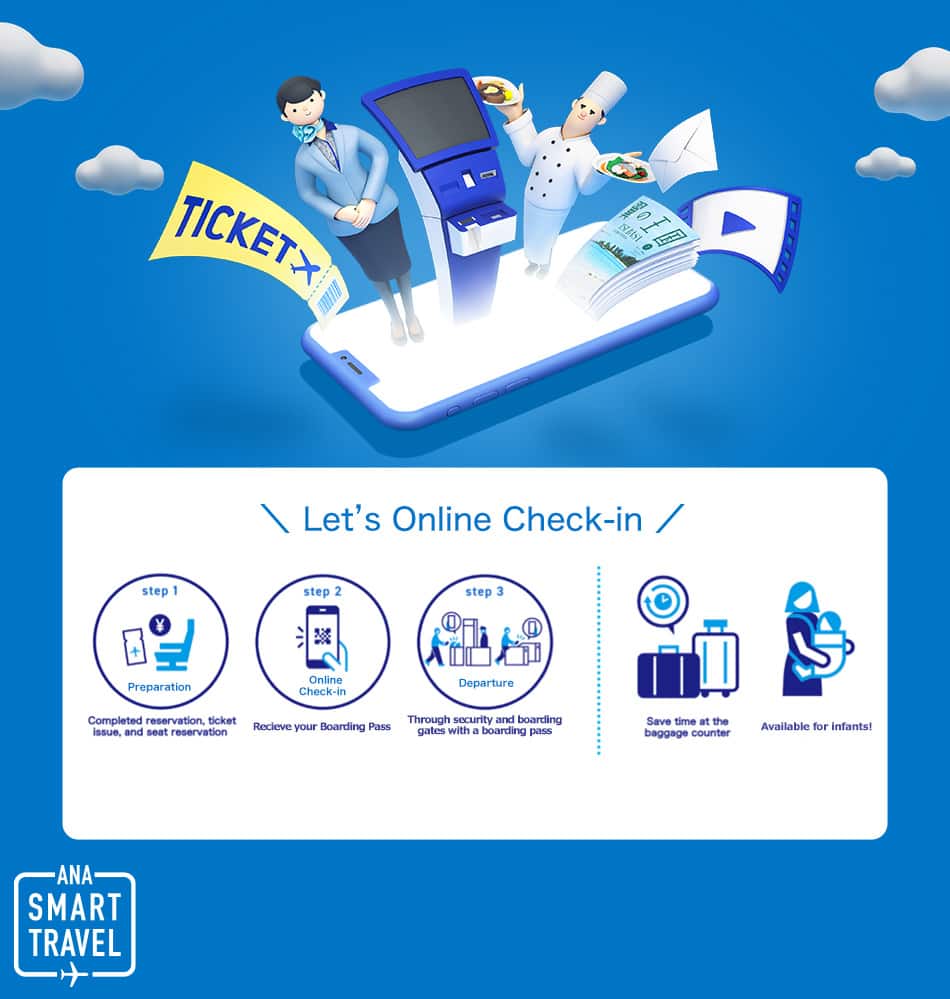
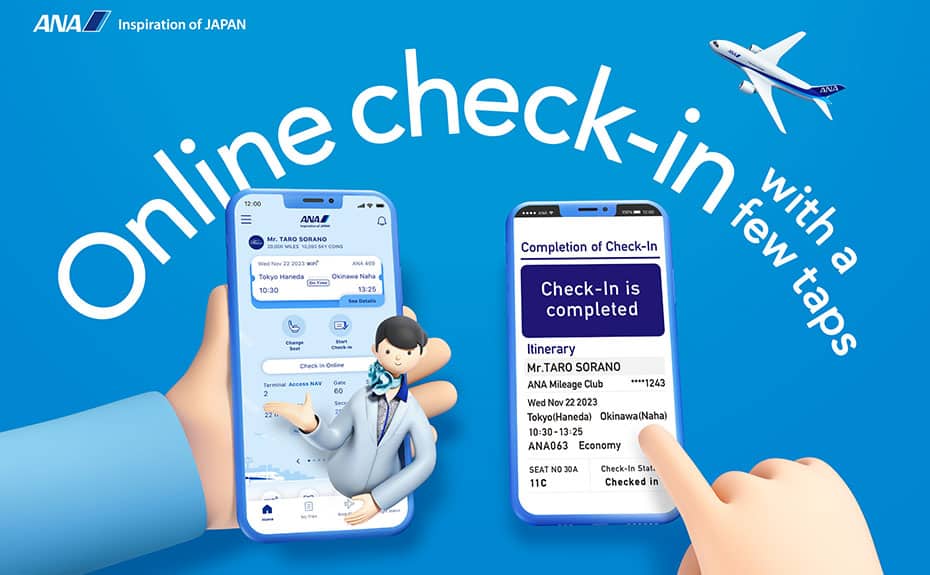
Online check-in is a service that allows you to check in and get your boarding pass issued from 24 hours prior to the departure of your flight.
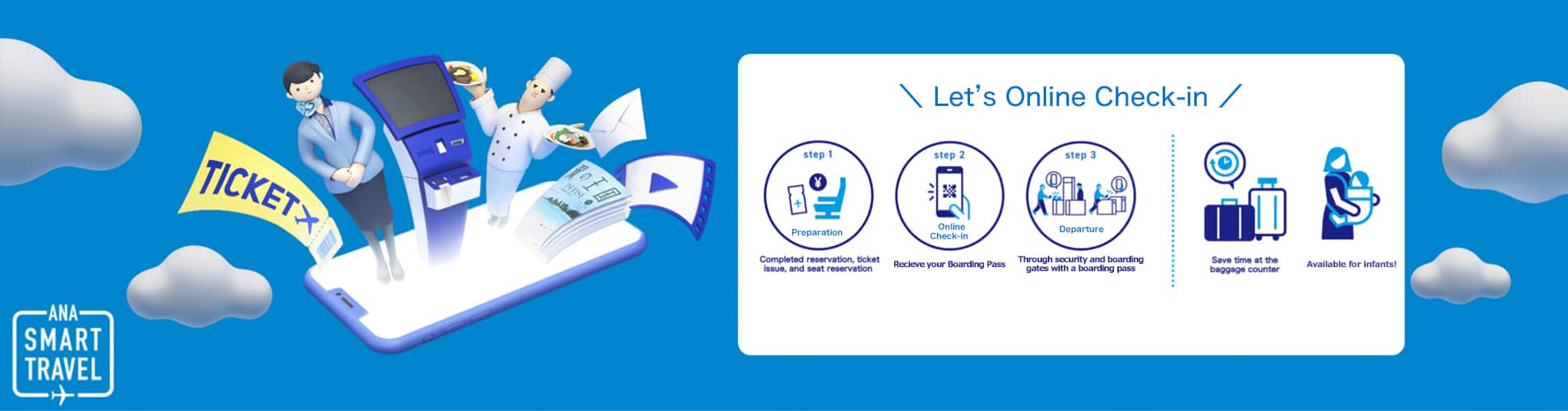
If you are using the ANA app, please update to the latest version. If you are using a web browser, there are certain system requirements. For further details, please see System Requirement.
There will be limitations on Japan domestic flight services during the system migration period from May 19, 2026 to June 9, 2026 (planned). For details, please refer to Service Limitations During System Migration Period.
You cannot check in online or cancel online check-in via ANA contact center. Please complete the procedures by yourself.
Link your flight reservation to the ANA App after making the reservation and purchase to manage your reservation/seats and start online check-in with a single tap from the ANA App. You can complete the procedures smoothly without having the need to search for your reservations every time.
Download the ANA App to get started. Your reservations may not load if you don't have the latest version of the app.
If you are an ANA Mileage Club member and are already logged in to the ANA App, your reservations will be automatically linked as before.
If this does not work, please relaunch the application and make sure to refresh this page.
To link your reservation to the ANA App from the Payment Complete screen, select "Load into ANA App" on the Payment Complete screen to complete the linking process. To link your reservation to the ANA App from the Reservation Details screen, select "Load into ANA App" or "ANA App" on the Reservation Details screen to complete the linking process. To link your reservation to the ANA App through a link in a ANA Japan domestic flight email, select the URL given in the email to complete the linking process. There are three types of ANA Japan domestic flight emails that you can use to link to the ANA App: (1) Check-in Information, (2) Notification of Online Check-In Deadline, (3) Payment Complete Notification.
To link your reservation to the ANA App from the Payment Complete screen, select "Load into ANA App" on the Payment Complete screen. Read the 2D barcode displayed on your PC to complete the linking process. To link your reservation to the ANA App from the Reservation Details screen, select "Load into ANA App" or "ANA App" on the Reservation Details screen. Read the 2D barcode displayed on your PC to complete the linking process. To link your reservation to the ANA App through a link in a ANA Japan domestic flight email, select the URL given in the email. Read the 2D barcode displayed on your PC to complete the linking process. There are three types of ANA Japan domestic flight emails that you can use to link to the ANA App: (1) Check-in Information, (2) Notification of Online Check-In Deadline, (3) Payment Complete Notification.
When checking in online without linking your reservation to the ANA App, please prepare one of the following pieces of information in advance and search for your reservation.
| ANA Mileage Club Members | Non-Members |
|---|---|
| 10-digit ANA Mileage Club membership number and web password | Departure date, flight number, 9-digit confirmation number or 4-digit reservation number, and full name |
For details, please see here if your confirmation number, part of verification code, is uncler.
When searching by reservation number, two-step verification is required by also entering the associated confirmation number or credit card number.
Notifications regarding online check-in will be sent via email / ANA app push notifications.
For details, please see Email Service.
On the top page of the ANA app, tap the Login button.
On the member login screen, enter your customer number (10 digits) and web password, and tap the Login button.
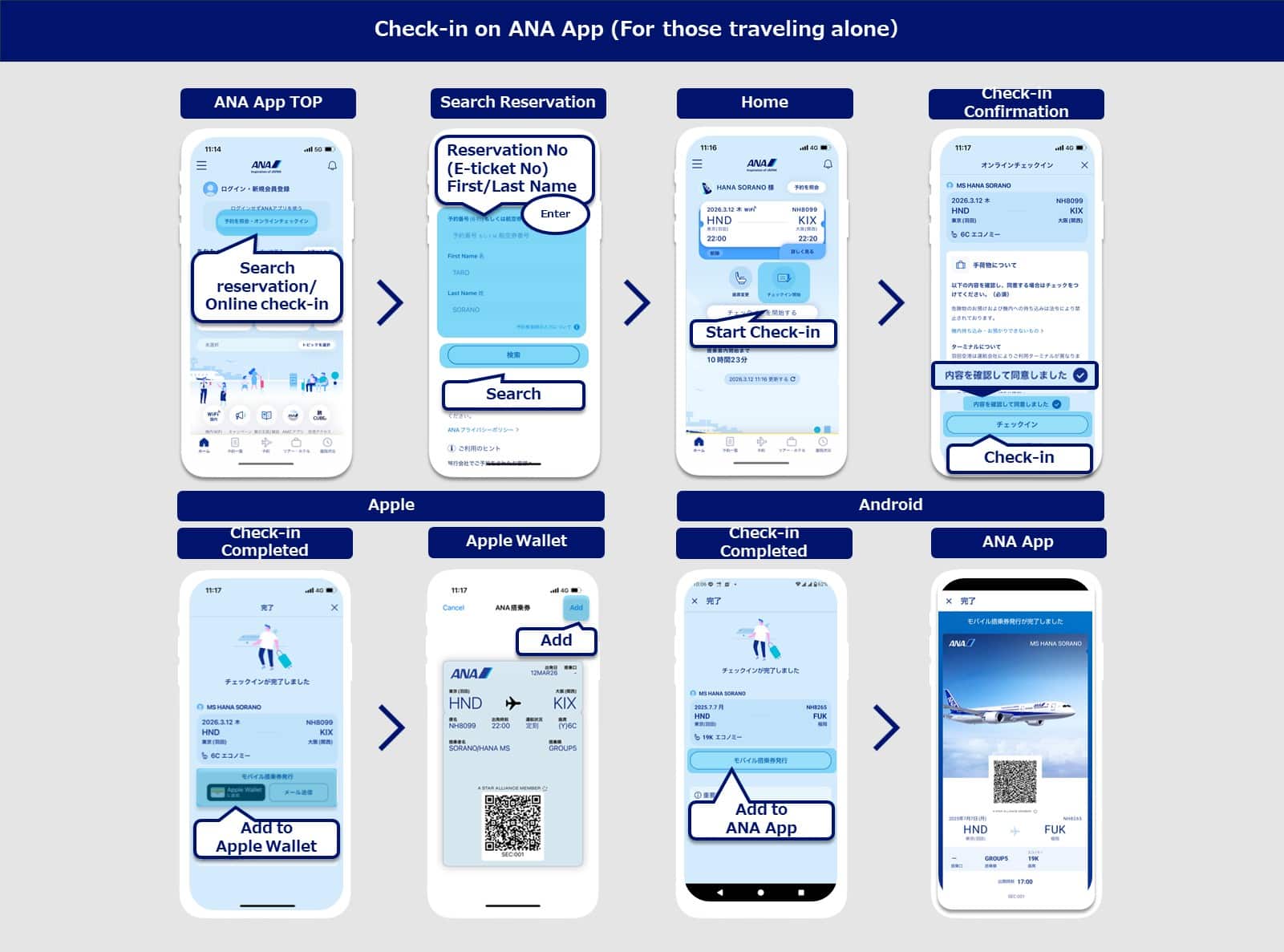
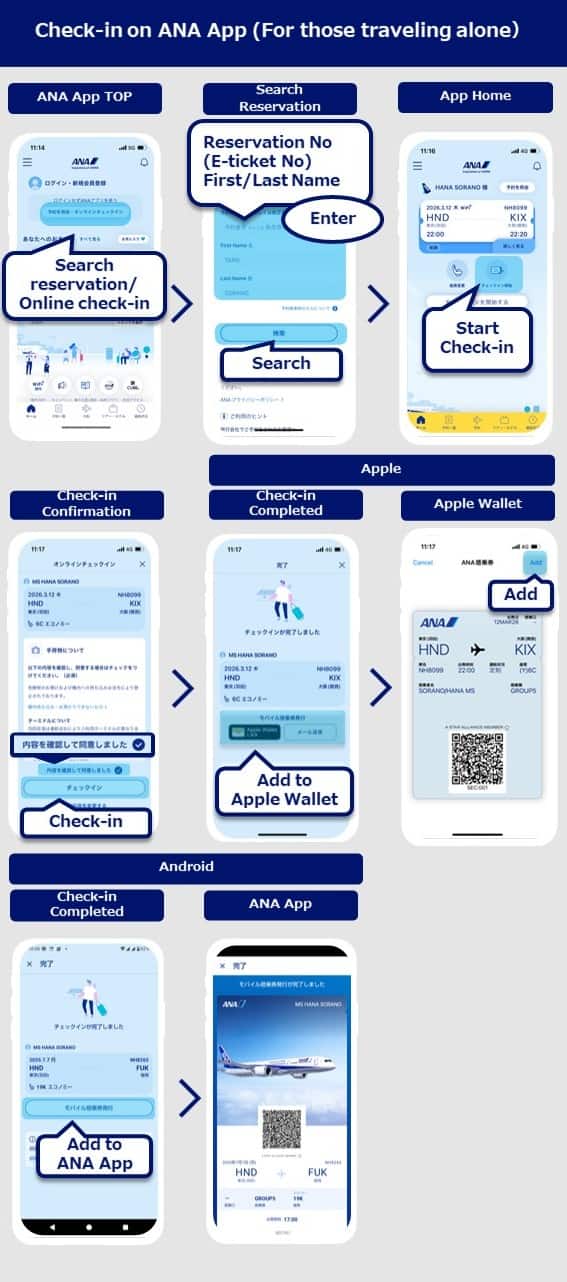
On the Home screen, tap start check in.
On the check-in selection screen, select the flight and passenger to check in and tap the Next button.
On the seat reservation screen, select your desired seat and tap the Next button.
On the check-in details confirmation screen, confirm the check-in details, select details confirmed and tap the Next button.
On the check-in completion screen, tap the Boarding Pass button.
On the boarding pass issue screen, select the Add to Apple Wallet button.
On the Apple Wallet screen, select the Add button.
On the top page of the ANA app, select the Reservation Inquiry button.
On the reservation inquiry screen, enter the reservation information and tap the Search button.
On the Home screen, tap start check in.
On the check-in selection screen, select the flight and passenger to check in and tap the Next button.
On the customer information entry screen (optional), enter your mileage program and customer number (optional) and tap the Next button.
On the seat reservation screen, select a seat and tap the Next button.
On the check-in details confirmation screen, confirm the check-in details, select details confirmed and tap the Next button.
On the check-in completion screen, tap the Boarding Pass button.
On the boarding pass issue screen, select the Add to Apple Wallet button.
On the Apple Wallet screen, select the Add button.
On the top page of the ANA app, tap the Login button.
On the member login screen, enter your customer number (10 digits) and web password, and tap the Login button.
On the Home screen, tap start check in.
On the check-in selection screen, select the flight and passenger to check in and tap the Next button.
On the seat reservation screen, select your desired seat and tap the Next button.
On the check-in details confirmation screen, confirm the check-in details, select details confirmed and tap the Next button.
On the check-in completion screen, tap the Boarding Pass button.
Select the Register on App button on the boarding pass issue screen.
Save the ANA app.
Tap the reservation inquiry button at the top of the ANA app.
On the reservation inquiry screen, enter the reservation information and tap the Search button.
On the Home screen, tap start check in.
Select the flight and passenger for check-in and tap the Next button.
On the customer information entry screen (optional), Enter your mileage program and customer number (optional) and tap the Next button.
Select a seat and tap the Next button.
On the check-in details confirmation screen, confirm the check-in details, select details confirmed and tap the Next button.
Tap the Boarding Pass button.
Tap the Register on App button.
Save the ANA app.
On the online check-in reservation search screen, select the Non-members tab, enter the reservation information and tap the Search button.
On the check-in selection screen, select the flight and passenger to check-in and tap the Next button.
On the customer information entry screen (optional), enter your mileage program and customer number (optional) and tap the Next button.
On the seat reservation screen, select a seat and tap the Next button.
On the check-in details confirmation screen, confirm the check-in details, select details confirmed and tap the Next button.
On the check-in completion screen, select the Boarding Pass button.
If you are using an Android device, issue of the boarding pass is complete. If you are using an iOS device, on the boarding pass issue screen, tap the Add to Apple Wallet button. On the Apple Wallet screen, tap the Add button.
On the online check-in reservation search screen, enter the reservation information for non-members and tap the Search button.
On the check-in selection screen, select the flight and passenger to check-in and tap the Next button.
On the customer information entry screen (optional), enter your mileage program and customer number (optional) and tap the Next button.
On the seat reservation screen, select a seat and tap the Next button.
Confirm the check-in and flight details, select details confirmed and tap the Check-in button.
On the check-in completion screen, select the Boarding Pass button.
If sending by email, select the send by email button on the boarding pass screen and tap the Send button. If printing, tap the Print button on the boarding pass screen.
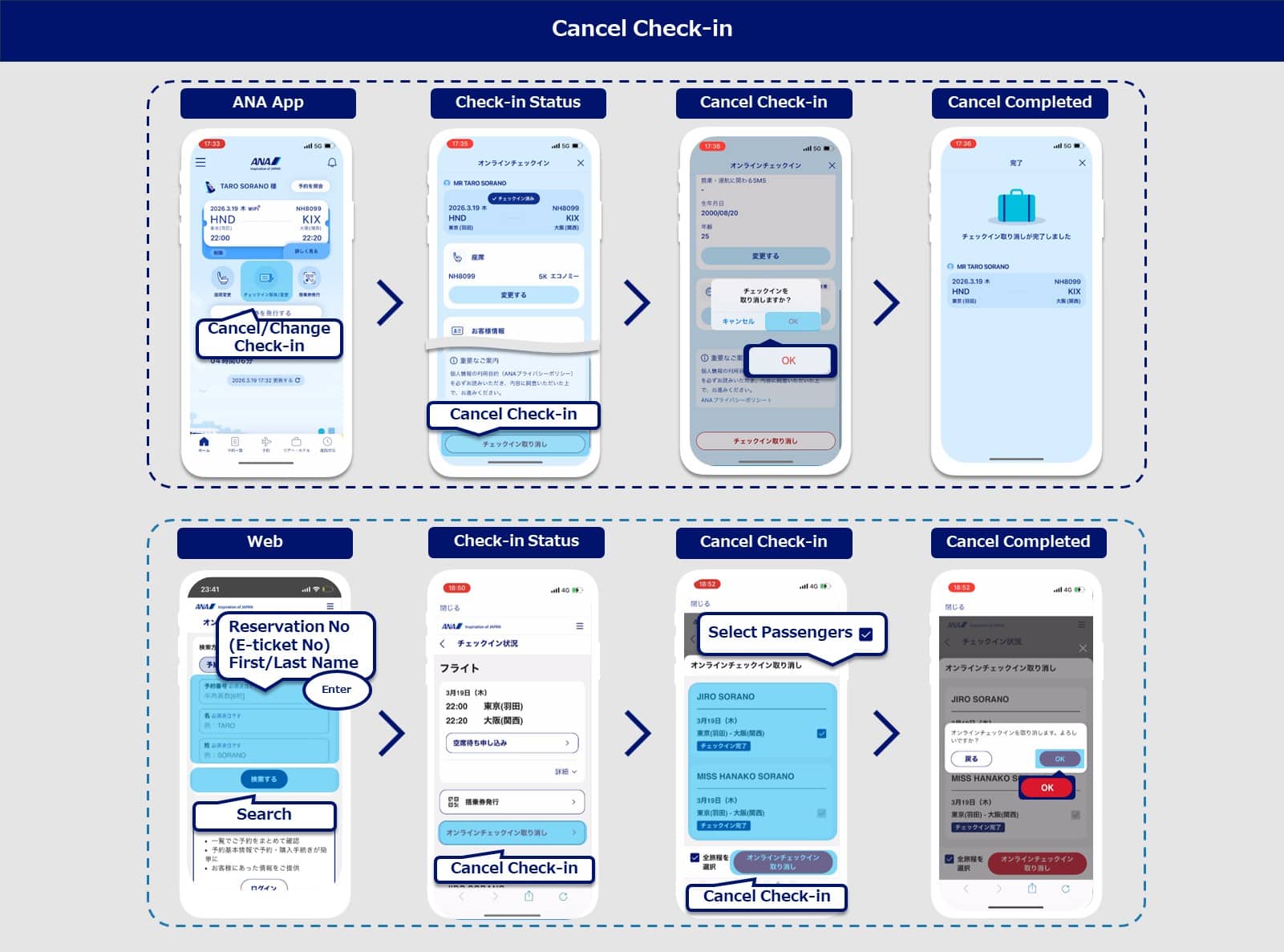
To cancel your check-in on the ANA app, select Cancel/Change Check-in on the app's Home screen. To cancel your check-in on the ANA website, select the Non-members tab on the online check-in reservation search screen, enter your flight information, and then select the Search button.
Confirm the flight displayed on the check-in status confirmation screen on the ANA app or ANA website and then select the Cancel Check-in button.
Select the passenger on the check-in cancellation selection screen and tap the Next button.
On the check in cancellation details confirmation screen, confirm the cancellation details, select details confirmed and tap the Cancel Check-in button.
Confirm the explanation on the check-in cancellation confirmation and then select the OK button.
Check-In Cancellation Completed.
On the ANA app Home screen, select start online check in.
On the check-in selection screen, confirm the flight for check-in, select the passenger and tap the Next button.
On the customer information entry screen (optional), enter your mileage program and customer number (optional) and tap the Next button.
On the seat reservation screen, select a seat for the first sector and tap the Next button.
On the seat reservation screen, select a seat for the second sector and tap the Next button.
On the check-in details confirmation screen, confirm the check-in details, select details confirmed and tap the Next button.
Tap the Boarding Pass button for each flight displayed on the check-in completion screen.
On the boarding pass issue screen, select the Add to Apple Wallet button.
On the Apple Wallet screen, select the Add button.
On the ANA app Home screen, select start check in.
On the online check-in reservation search screen, enter the flight information on the Non-members tab and tap the Search button.
Select the passengers on the check-in selection screen and tap the Next button.
On the customer information entry screen (optional), enter your mileage program and customer number (optional) and tap the Next button.
On the seat reservation confirmation screen, confirm the seat reservation and tap the Close button.
On the seat reservation screen, select a seat and tap the Next button.
On the check-in details confirmation screen, confirm the check-in details, select details confirmed and tap the Next button.
Tap the Boarding Pass button for each passenger displayed on the check-in completion screen.
On the boarding pass issue screen, tap the Add to Apple Wallet button.
On the Apple Wallet screen, select the Add button.
On the ANA app Home screen, select start check in.
On the online check-in reservation search screen, enter the flight information on the Non-members tab and tap the Search button.
Select the passengers on the check-in selection screen and tap the Next button.
On the customer information entry screen (optional), enter your mileage program and customer number (optional) and tap the Next button.
On the seat reservation confirmation screen, confirm the seat reservation and tap the Close button.
On the seat reservation screen, select a seat and tap the Next button.
On the check-in details confirmation screen, confirm the check-in details, select details confirmed and tap the Next button.
Tap the Boarding Pass button for each passenger displayed on the check-in completion screen.
Select the Register on App button on the boarding pass issue screen.
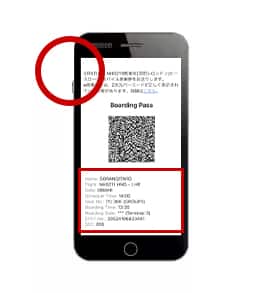
This is a boarding pass that can be issued and displayed on a smartphone, PC and tablet after online check-in using the ANA app or a web browser.
Issue your mobile boarding pass at least 20 minutes prior to departure, and be sure to keep it so that you can pass through the security checkpoint and boarding gate.
Please issue and keep the latest mobile boarding pass for each person.
When you are passing through the security checkpoint and boarding gate, please scan your own mobile boarding pass on the reader. (If you are with family or companions, either each of you can scan your mobile boarding pass on the reader one by one, or a representative can issue all of the mobile boarding passes and scan the mobile boarding passes on the reader. Please note that customers with small children up to two years old also need to issue mobile boarding passes for their children.)
| Mobile boarding pass | Online check-in using the ANA app | Online check-in using a web browser (Smartphone) | Online check-in using a web browser (PC / Tablet) |
|---|---|---|---|
| iOS | a. Issue and keep pass in Apple Wallet | a. Issue and keep pass in Apple Wallet | d. Displayed after the boarding pass button is pressed (Can be sent by e-mail and printed) |
| Android | b. Issue and keep pass in ANA app | c. Issue and display pass on Boarding Pass Issuance screen |
To issue a boarding pass, select the Add to Apple Wallet button from the boarding pass screen. After the screen transitions to Apple Wallet and your mobile boarding pass appears on the ANA boarding pass screen, select the Add button in the upper right corner to complete issuance. On your smartphone, select Apple Wallet as the boarding pass display method. Alternatively, customers who have the ANA app can use the Display Mobile Boarding Pass button in the ANA app.
To issue a boarding pass using the ANA app, select the Register to App button from the boarding pass screen. To display your boarding pass, press the Display Mobile Boarding Pass button in the ANA app. Alternatively, you can select View 2D Barcode in the burger menu in the ANA app. If you do not have the ANA app, your mobile boarding pass will be displayed as a 2D Barcode on the boarding pass screen in your browser, so when showing the boarding pass, please re-open the boarding pass screen or show a screenshot of mobile boarding pass.
To send your boarding pass via email, select the Send Email button on the boarding pass screen in your browser. On the Send Email screen, enter the destination email address and press Send to send the email. To print your boarding pass, press the Print button on the boarding pass screen in your browser, then print via the print screen.
There are two ways to reissue a boarding pass. As an example, if Sorano Hanako's seat is changed from 22G to 22D and she wants to reissue her boarding pass.
The first method is to delete the old mobile boarding pass and issue a new one following the seat change.
Press Delete from Apple Wallet (recommended) on the View and Save Boarding Passes screen.
Once the screen has transitioned to Apple Wallet, select the mobile boarding pass you wish to change on the ANA boarding pass screen and press the three-dot icon in the upper right corner.
Select Delete Pass.
Next, Press the Add to Apple Wallet button on the View and Save Boarding Passes screen.
Once the screen has transitioned to Apple Wallet, check the boarding pass summary on the ANA Boarding Passes screen and press the Add button to complete reissuance.
The second method is to add a new mobile boarding pass after changing seats without deleting your old mobile boarding pass.
Select Add Without Deleting on the View and Save Boarding Passes screen.
Once the screen has transitioned to Apple Wallet, press the Add button on the ANA Boarding Passes screen to complete reissuance.
If you do not delete the boarding pass for the other seat, it will continue to appear in Apple Wallet even after adding the new one.
Q1. I plan to board with my family and an accompanying passenger. How should we issue and keep all of the mobile boarding passes?
A. They can be issued and kept on each person’s smartphone, or they can all be issued and managed on a representative’s smartphone. When passing through the security checkpoint and boarding gate, please make sure to scan the mobile boarding pass on the reader for the person passing through.
(e.g. if Person 1 is the representative, Person 2 is an accompanying child under 2 years old and Person 3 is an accompanying passenger)
On the check-in completion screen, press the View and Save Boarding Passes button.
Once Person 1 has pressed the Add to Apple Wallet button, the screen will transition to Apple Wallet. When the mobile boarding pass appears on the ANA boarding pass screen, press the Add button in the upper right corner to complete issuance.
Similarly, for Person 2 (child under 2 years old), press the Add to Apple Wallet button on the View and Save Boarding Passes screen.
Once the screen has transitioned to Apple Wallet and your mobile boarding pass appears on the ANA boarding pass screen, press the Add button in the upper right corner to complete issuance.
Person 3 then presses the Confirm Check-in Status button on the View and Save Boarding Passes screen, and then presses the View and Save Boarding Passes button on the Confirm Check-in Status screen. After pressing the Add to Apple Wallet button on the View and Save Boarding Passes screen, the screen will transition to Apple Wallet.
When your mobile boarding pass appears on the ANA boarding pass screen, press the Add button in the upper right corner to complete issuance.
(e.g. if Person 1 is the representative, Person 2 is an accompanying and Person 3 is an accompanying child under 2 years old passenger)
On the check-in completion screen, select the Boarding Pass button.
Once Person select the Register on App button on the boarding pass issue screen.
Person 2 then presses the Confirm Check-in Status button on the View and Save Boarding Passes screen, and then presses the View and Save Boarding Passes button on the Confirm Check-in Status screen.
Person 3 (child under 2 years old) then presses the Confirm Check-in Status button on the View and Save Boarding Passes screen, and then presses the View and Save Boarding Passes button on the Confirm Check-in Status screen.
Q2. What should I do if I do not have a smartphone?
A. If you are traveling with somebody else, somebody with a smartphone can issue and keep the mobile boarding passes together.
If you are traveling alone, please complete procedures at the airport counter.
Q3. Why can only Apple Wallet be used with iOS?
A. We certainly hope that you will use Apple Wallet because you can store multiple mobile boarding passes at the same time, use it without depending on the state of signal reception, and go through security checkpoints and boarding gates more smoothly.
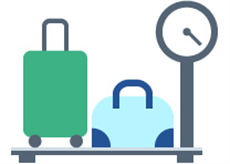
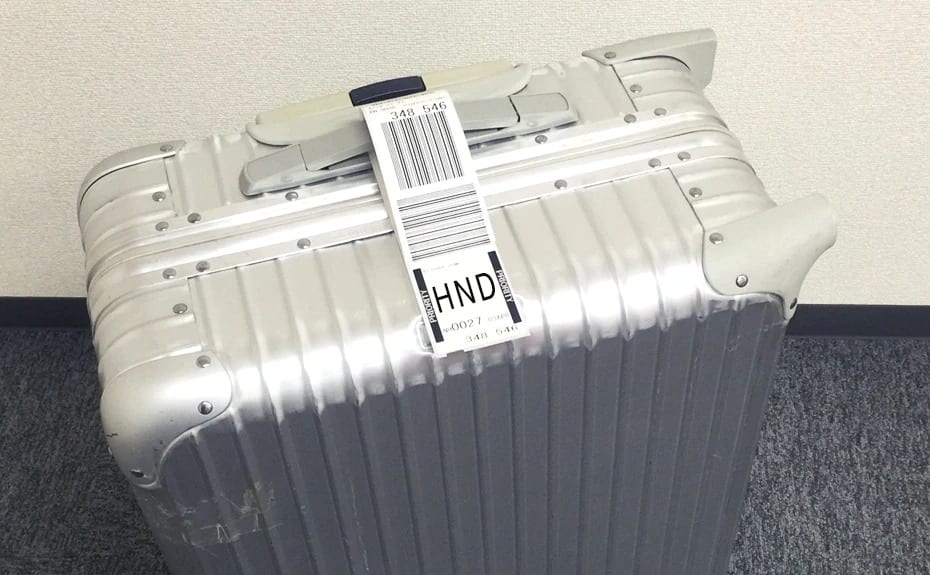
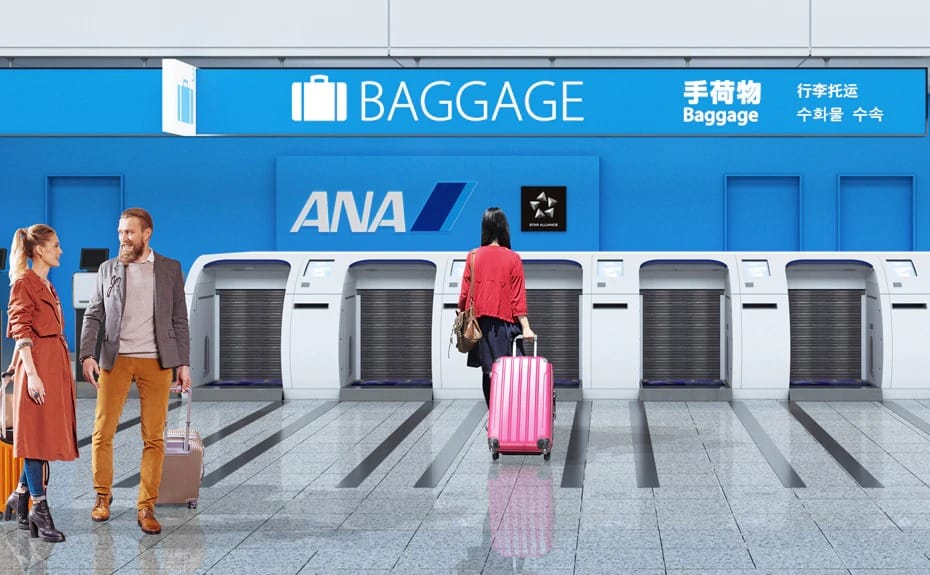
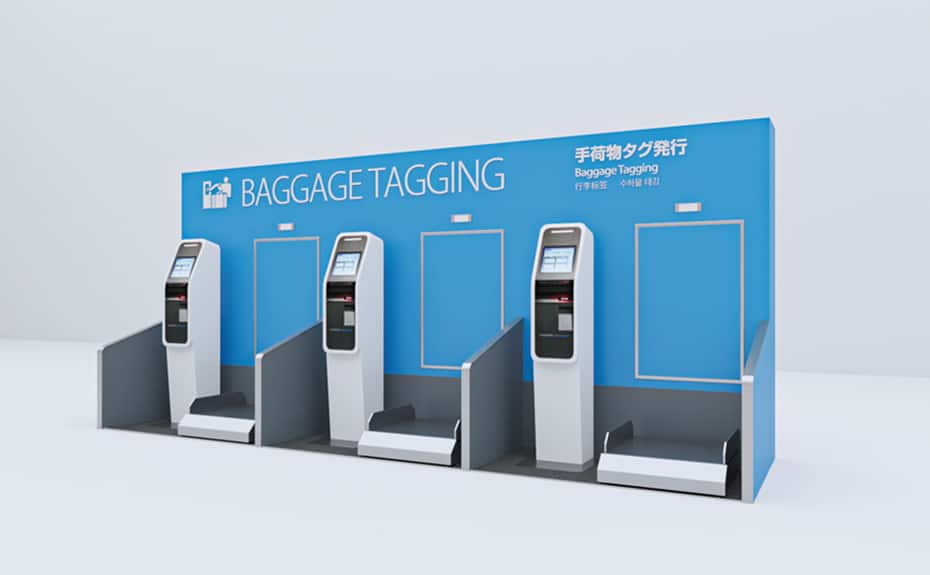
If you have check-in baggage, please check it in at ANA BAGGAGE DROP or at the baggage drop counter before departure.
Please complete the procedures as early as possible so that you can pass through security at least 20 minutes prior to the departure time.
You will not be able to board your flight if you do not complete these procedures by the specified time.
Up to 20 kg of baggage per passenger (or 40 kg in Premium class) can be checked free of charge.
When doing so, please show your mobile boarding pass.
Important Notes
Customers with large-sized baggage: For information about checking in skis, surfboards or other large-sized baggage, please see Baggage [Japan Domestic Flights].
Customers checking in their pets: If you are checking in a pet, please do so early as more time will be required than usual.
For details, please see Passengers traveling with pets [Japan Domestic Flights].
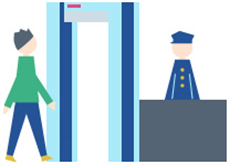
Please pass through security at least 20 minutes prior to the departure time.
At the security checkpoint, carry-on baggage and passenger bodies are inspected.We recommend checking in earlier during the summer holiday season or around the year-end or new year holidays when airports are expected to be crowded.
Please scan your mobile boarding pass on the reader installed at the security checkpoint.
Security screening is being reinforced by instruction of the Ministry of Land, Infrastructure, Transport and Tourism. For details, please see reinforcement efforts from September 13, 2019 onward. (Japanese only)
Please take off your coats, jackets and other such items and put them on the trays provided.
Safety shoes, thick-soled shoes, boots, and ankle covering shoes will require screening.
Please take out notebook computers and other electronic devices from your bag.
Please keep any metallic items in your bag or a basket provided.
Please remove any plastic bottle from your bag. (The content of liquid items may be inspected if necessary.)
Some items, such as scissors and tools, cannot be brought onboard, while others, such as spray cans and gas intended for camping, are not allowed to be checked or brought onboard. For details, click Items Which Are Not Permitted to Be Checked In or Carried on Board [Japan Domestic Flights].
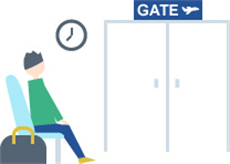
Please come to the boarding gate 10 minutes prior to your departure.
Please confirm your boarding gate using the ANA app's Home screen, your mobile boarding pass (excluding those on the ANA app on Android devices), the flight information board at the airport, or the departure/arrival information page on the ANA website. Please see Boarding procedures.
Please scan your mobile boarding pass on the ticket gate to board.
Even if you have completed your reservation, you will not be able to board your flight if you do not come to the boarding gate at least 10 minutes prior to departure.
Please set devices which emit radio waves for communication to not emit radio waves, or turn off the power when the aircraft doors are closed.
Online check-in is not available if any of the following in (1) or (2) applies.
Please complete the necessary procedures at an airport counter or self-service check-in machine, and then pass through security at least 20 minutes prior to departure.
Premium Disability Discount *1 *2
Premium Shareholder's Benefit Discount *3
Disability Discount *1 *2
Shareholder's Benefit Discount *3
Islands Ticket *1
Other group fares
ANA Mileage Club Members who have completed the "Registration of Identification Booklet for Persons with Disabilities" are able to Online Check-in if they do not require assistance. If you are already registered, you may still be asked to show your identification, so please always carry it with you. Customers who require special assistance will check in at ANA airport counter.
If you log in and make a reservation from your own ANA Mileage Club account to which you have registered information from your Identification Booklet for Persons with Disabilities, your caregiver can also use the online check-in.
Online check-in will be available if you register your Shareholder's Benefit Number and registration password after purchasing your tickets via the ANA website or ANA Domestic Reservation and Customer Service Center.
Customers who have selected "Post-boarding collection of shareholder discount" on the ANA Biz website can use online check-in without registering "Shareholder's benefit number" and "password".
You have JAL flight tickets.
Information about your flight ticket cannot be confirmed online.
Customers using the ANA Junior Pilot service
Customers requiring boarding assistance (e.g., wheelchair users)
The reserved itinerary contains 4 or more sectors.
The fare at purchase is different from the applicable fare at check-in.
Advance upgrade fees have not been paid.
You are using a group fare (Japan domestic flights).
When the same itinerary includes segments operated by Japan Air Commuter or Amakusa Airlines.
As the various handling procedures will be different for flights operated by Japan Air Commuter and Amakusa Airlines, you are kindly requested to see the information on the Japan Air Commuter or Amakusa Airlines page before you travel on such flights.
Additionally, online check-in will be unavailable if check-in is suspended due to aircraft changes, etc.
Upon presenting the mobile boarding pass, the barcode may be difficult to scan if the backlight is turned off or the screen is covered by a protective film.
The 2D barcode on mobile boarding pass may appear smaller on some devices due to the device settings. If it is not possible to scan the 2D barcode on mobile boarding pass, airport staff may ask you to change the size or other relevant settings.
If you cancel check-in after checking in online, your seat reservations may be deleted at the same time. Please select a new seat when checking in again.
You will not be able to change your reservation after checking in online. In this instance, please change your reservation after you have boarded the flight for which you have checked in online, or after canceling check-in temporarily. If you wish to change to a previous flight* or upgrade using upgrade points*, you do not need to cancel online check-in. *Only for eligible fares
You cannot check in online or cancel online check-in via the ANA Domestic Reservation and Customer Service Center. Please complete the procedures by yourself.
Online check-in is also available for Japan domestic flights that are ticketed as part of an international flight ticket. Please go to International Flights - Online Check-in on the ANA website to do so. (Online check-in may be unavailable in certain cases. In this instance, please check in at an airport counter or using a self-service check-in machine.)
From May 19 to the end of June 2026 (planned), the Japan domestic and international passenger service systems will be integrated to a new system by airport.
During this system migration period, some airports will be operating on the pre-integration system while others will have migrated to the new system. Procedures for check-in will differ depending on the system integration schedule, so please follow the procedure on the corresponding page below.
If the screen after reservation search displays "Select Flight and Passengers", please check the procedure before system integration. If the screen displays "Check-in Target", please check the procedure after system integration.
We sincerely apologize for any inconvenience this may cause.
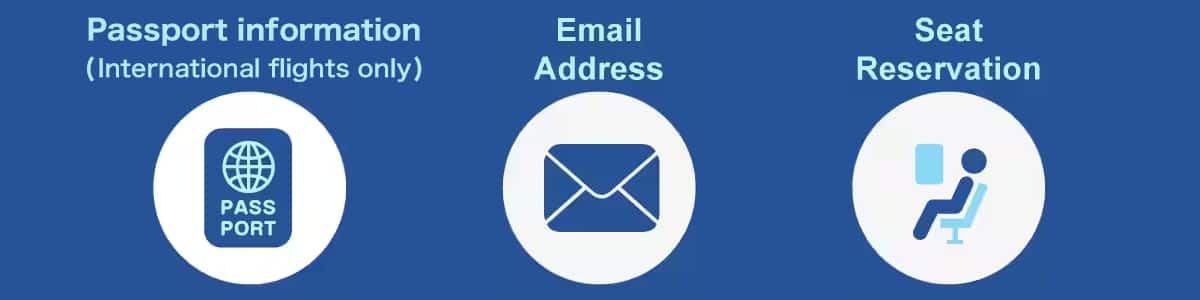
Search for your reservation information, enter your passport/immigration information (international flights only), email address, and then reserve your seat on the reservation details screen. You will receive a check-in notification email 24 hours prior to your flight's departure time.
Seat Reservation 24 hours prior to your flight is available depending on the fare purchased. For itineraries that include an international flight, please complete seat reservation at least 48 hours prior to departure. For domestic itineraries, seat reservation will not be available between 48 and 24 hours prior to departure during the system transition period, so please complete the process at least 48 hours prior to departure. You can reserve your seat via the online check-in screen starting 24 hours before your flight's departure time.
On the top page of the ANA app, tap the Login button.
On the member login screen, enter your customer number (10 digits) and web password, and tap the Login button.
On the Home screen, tap start check in.
On the check-in selection screen, select the flight and passenger to check in and tap the Next button.
On the seat reservation screen, select your desired seat and tap the Next button.
On the check-in details confirmation screen, confirm the check-in details, select details confirmed and tap the Next button.
On the check-in completion screen, tap the Boarding Pass button.
On the boarding pass issue screen, select the Add to Apple Wallet button.
On the Apple Wallet screen, select the Add button.
On the top page of the ANA app, select the Reservation Inquiry button.
On the reservation inquiry screen, enter the reservation information and tap the Search button.
On the Home screen, tap start check in.
On the check-in selection screen, select the flight and passenger to check in and tap the Next button.
On the customer information entry screen (optional), enter your mileage program and customer number (optional) and tap the Next button.
On the seat reservation screen, select a seat and tap the Next button.
On the check-in details confirmation screen, confirm the check-in details, select details confirmed and tap the Next button.
On the check-in completion screen, tap the Boarding Pass button.
On the boarding pass issue screen, select the Add to Apple Wallet button.
On the Apple Wallet screen, select the Add button.
On the top page of the ANA app, tap the Login button.
On the member login screen, enter your customer number (10 digits) and web password, and tap the Login button.
On the Home screen, tap start check in.
On the check-in selection screen, select the flight and passenger to check in and tap the Next button.
On the seat reservation screen, select your desired seat and tap the Next button.
On the check-in details confirmation screen, confirm the check-in details, select details confirmed and tap the Next button.
On the check-in completion screen, tap the Boarding Pass button.
Select the Register on App button on the boarding pass issue screen.
Save the ANA app.
Tap the reservation inquiry button at the top of the ANA app.
On the reservation inquiry screen, enter the reservation information and tap the Search button.
On the Home screen, tap start check in.
Select the flight and passenger for check-in and tap the Next button.
On the customer information entry screen (optional), Enter your mileage program and customer number (optional) and tap the Next button.
Select a seat and tap the Next button.
On the check-in details confirmation screen, confirm the check-in details, select details confirmed and tap the Next button.
Tap the Boarding Pass button.
Tap the Register on App button.
Save the ANA app.
On the online check-in reservation search screen, select the Non-members tab, enter the reservation information and tap the Search button.
On the check-in selection screen, select the flight and passenger to check-in and tap the Next button.
On the customer information entry screen (optional), enter your mileage program and customer number (optional) and tap the Next button.
On the seat reservation screen, select a seat and tap the Next button.
On the check-in details confirmation screen, confirm the check-in details, select details confirmed and tap the Next button.
On the check-in completion screen, select the Boarding Pass button.
If you are using an Android device, issue of the boarding pass is complete. If you are using an iOS device, on the boarding pass issue screen, tap the Add to Apple Wallet button. On the Apple Wallet screen, tap the Add button.
On the online check-in reservation search screen, enter the reservation information for non-members and tap the Search button.
On the check-in selection screen, select the flight and passenger to check-in and tap the Next button.
On the customer information entry screen (optional), enter your mileage program and customer number (optional) and tap the Next button.
On the seat reservation screen, select a seat and tap the Next button.
Confirm the check-in and flight details, select details confirmed and tap the Check-in button.
On the check-in completion screen, select the Boarding Pass button.
If sending by email, select the send by email button on the boarding pass screen and tap the Send button. If printing, tap the Print button on the boarding pass screen.
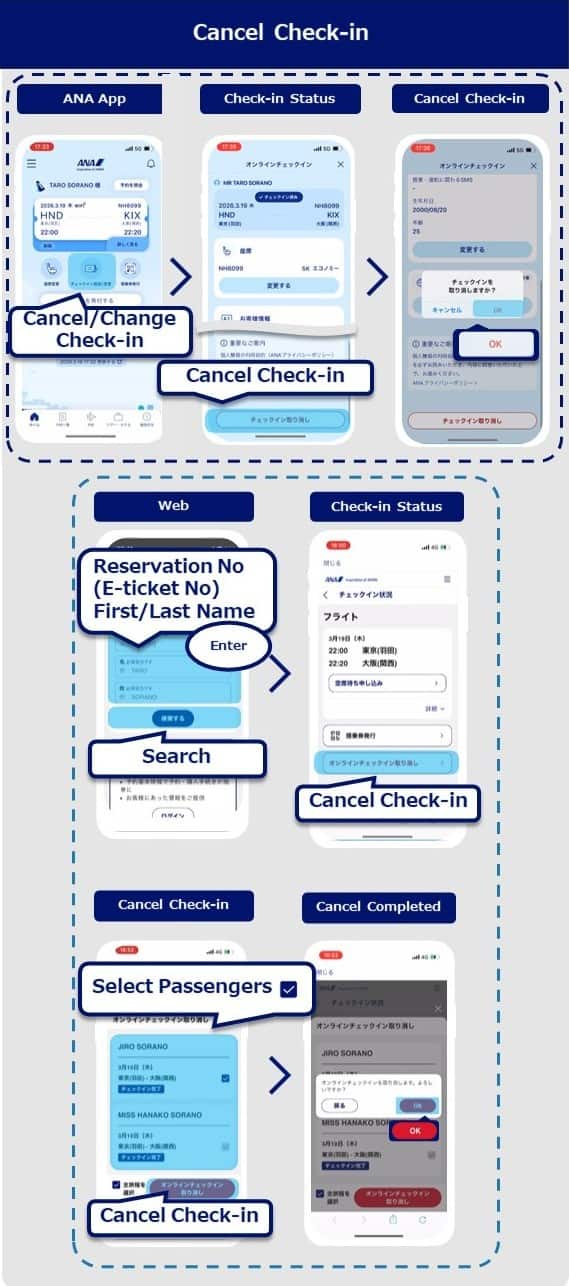
To cancel your check-in on the ANA app, select Cancel/Change Check-in on the app's Home screen. To cancel your check-in on the ANA website, select the Non-members tab on the online check-in reservation search screen, enter your flight information, and then select the Search button.
Confirm the flight displayed on the check-in status confirmation screen on the ANA app or ANA website and then select the Cancel Check-in button.
Select the passenger on the check-in cancellation selection screen and tap the Next button.
On the check in cancellation details confirmation screen, confirm the cancellation details, select details confirmed and tap the Cancel Check-in button.
Confirm the explanation on the check-in cancellation confirmation and then select the OK button.
Check-In Cancellation Completed.
On the ANA app Home screen, select start online check in.
On the check-in selection screen, confirm the flight for check-in, select the passenger and tap the Next button.
On the customer information entry screen (optional), enter your mileage program and customer number (optional) and tap the Next button.
On the seat reservation screen, select a seat for the first sector and tap the Next button.
On the seat reservation screen, select a seat for the second sector and tap the Next button.
On the check-in details confirmation screen, confirm the check-in details, select details confirmed and tap the Next button.
Tap the Boarding Pass button for each flight displayed on the check-in completion screen.
On the boarding pass issue screen, select the Add to Apple Wallet button.
On the Apple Wallet screen, select the Add button.
On the ANA app Home screen, select start check in.
On the online check-in reservation search screen, enter the flight information on the Non-members tab and tap the Search button.
Select the passengers on the check-in selection screen and tap the Next button.
On the customer information entry screen (optional), enter your mileage program and customer number (optional) and tap the Next button.
On the seat reservation confirmation screen, confirm the seat reservation and tap the Close button.
On the seat reservation screen, select a seat and tap the Next button.
On the check-in details confirmation screen, confirm the check-in details, select details confirmed and tap the Next button.
Tap the Boarding Pass button for each passenger displayed on the check-in completion screen.
On the boarding pass issue screen, tap the Add to Apple Wallet button.
On the Apple Wallet screen, select the Add button.
On the ANA app Home screen, select start check in.
On the online check-in reservation search screen, enter the flight information on the Non-members tab and tap the Search button.
Select the passengers on the check-in selection screen and tap the Next button.
On the customer information entry screen (optional), enter your mileage program and customer number (optional) and tap the Next button.
On the seat reservation confirmation screen, confirm the seat reservation and tap the Close button.
On the seat reservation screen, select a seat and tap the Next button.
On the check-in details confirmation screen, confirm the check-in details, select details confirmed and tap the Next button.
Tap the Boarding Pass button for each passenger displayed on the check-in completion screen.
Select the Register on App button on the boarding pass issue screen.
This is a boarding pass that can be issued and displayed on a smartphone, PC and tablet after online check-in using the ANA app or a web browser.
Please issue and keep the latest mobile boarding pass for each person.
When you are passing through the security checkpoint and boarding gate, please scan your own mobile boarding pass on the reader. (If you are with family or companions, either each of you can scan your mobile boarding pass on the reader one by one, or a representative can issue all of the mobile boarding passes and scan the mobile boarding passes on the reader. Please note that customers with small children up to two years old also need to issue mobile boarding passes for their children.)
| Mobile boarding pass | Online check-in using the ANA app | Online check-in using a web browser (Smartphone) | Online check-in using a web browser (PC / Tablet) |
|---|---|---|---|
| iOS | a. Issue and keep pass in Apple Wallet | a. Issue and keep pass in Apple Wallet | d. Displayed after the boarding pass button is pressed (Can be sent by e-mail and printed) |
| Android | b. Issue and keep pass in ANA app | c. Issue and display pass on Boarding Pass Issuance screen |
To issue a boarding pass, select the Add to Apple Wallet button from the boarding pass screen. After the screen transitions to Apple Wallet and your mobile boarding pass appears on the ANA boarding pass screen, select the Add button in the upper right corner to complete issuance. On your smartphone, select Apple Wallet as the boarding pass display method. Alternatively, customers who have the ANA app can use the Display Mobile Boarding Pass button in the ANA app.
To issue a boarding pass using the ANA app, select the Register to App button from the boarding pass screen. To display your boarding pass, press the Display Mobile Boarding Pass button in the ANA app. Alternatively, you can select View 2D Barcode in the burger menu in the ANA app. If you do not have the ANA app, your mobile boarding pass will be displayed as a 2D Barcode on the boarding pass screen in your browser, so when showing the boarding pass, please re-open the boarding pass screen or show a screenshot of mobile boarding pass.
To send your boarding pass via email, select the Send Email button on the boarding pass screen in your browser. On the Send Email screen, enter the destination email address and press Send to send the email. To print your boarding pass, press the Print button on the boarding pass screen in your browser, then print via the print screen.
There are two ways to reissue a boarding pass. As an example, if Sorano Hanako's seat is changed from 22G to 22D and she wants to reissue her boarding pass.
The first method is to delete the old mobile boarding pass and issue a new one following the seat change.
Press Delete from Apple Wallet (recommended) on the View and Save Boarding Passes screen.
Once the screen has transitioned to Apple Wallet, select the mobile boarding pass you wish to change on the ANA boarding pass screen and press the three-dot icon in the upper right corner.
Select Delete Pass.
Next, Press the Add to Apple Wallet button on the View and Save Boarding Passes screen.
Once the screen has transitioned to Apple Wallet, check the boarding pass summary on the ANA Boarding Passes screen and press the Add button to complete reissuance.
The second method is to add a new mobile boarding pass after changing seats without deleting your old mobile boarding pass.
Select Add Without Deleting on the View and Save Boarding Passes screen.
Once the screen has transitioned to Apple Wallet, press the Add button on the ANA Boarding Passes screen to complete reissuance.
If you do not delete the boarding pass for the other seat, it will continue to appear in Apple Wallet even after adding the new one.
Q1. I plan to board with my family and an accompanying passenger. How should we issue and keep all of the mobile boarding passes?
A. They can be issued and kept on each person’s smartphone, or they can all be issued and managed on a representative’s smartphone. When passing through the security checkpoint and boarding gate, please make sure to scan the mobile boarding pass on the reader for the person passing through.
(e.g. if Person 1 is the representative, Person 2 is an accompanying child under 2 years old and Person 3 is an accompanying passenger)
On the check-in completion screen, press the View and Save Boarding Passes button.
Once Person 1 has pressed the Add to Apple Wallet button, the screen will transition to Apple Wallet. When the mobile boarding pass appears on the ANA boarding pass screen, press the Add button in the upper right corner to complete issuance.
Similarly, for Person 2 (child under 2 years old), press the Add to Apple Wallet button on the View and Save Boarding Passes screen.
Once the screen has transitioned to Apple Wallet and your mobile boarding pass appears on the ANA boarding pass screen, press the Add button in the upper right corner to complete issuance.
Person 3 then presses the Confirm Check-in Status button on the View and Save Boarding Passes screen, and then presses the View and Save Boarding Passes button on the Confirm Check-in Status screen. After pressing the Add to Apple Wallet button on the View and Save Boarding Passes screen, the screen will transition to Apple Wallet.
When your mobile boarding pass appears on the ANA boarding pass screen, press the Add button in the upper right corner to complete issuance.
(e.g. if Person 1 is the representative, Person 2 is an accompanying and Person 3 is an accompanying child under 2 years old passenger)
On the check-in completion screen, select the Boarding Pass button.
Once Person select the Register on App button on the boarding pass issue screen.
Person 2 then presses the Confirm Check-in Status button on the View and Save Boarding Passes screen, and then presses the View and Save Boarding Passes button on the Confirm Check-in Status screen.
Person 3 (child under 2 years old) then presses the Confirm Check-in Status button on the View and Save Boarding Passes screen, and then presses the View and Save Boarding Passes button on the Confirm Check-in Status screen.
Q2. What should I do if I do not have a smartphone?
A. If you are traveling with somebody else, somebody with a smartphone can issue and keep the mobile boarding passes together.
If you are traveling alone, please complete procedures at the airport counter.
Q3. Why can only Apple Wallet be used with iOS?
A. We certainly hope that you will use Apple Wallet because you can store multiple mobile boarding passes at the same time, use it without depending on the state of signal reception, and go through security checkpoints and boarding gates more smoothly.
If you have a baggage to check-in, please visit the ANA BAGGAGE DROP or the baggage drop counter no later than 20 minutes before departure. You cannot check in baggage later than this.
Important Notes
Customers with large-sized baggage: For information about checking in skis, surfboards or other large-sized baggage, please see Baggage [Japan Domestic Flights].
Customers checking in their pets: If you are checking in a pet, please do so early as more time will be required than usual.
For details, please see Passengers traveling with pets [Japan Domestic Flights].
At the security checkpoint, carry-on baggage and passenger bodies are inspected.We recommend checking in earlier during the summer holiday season or around the year-end or new year holidays when airports are expected to be crowded.
Please scan your mobile boarding pass on the reader installed at the security checkpoint.
Security screening is being reinforced by instruction of the Ministry of Land, Infrastructure, Transport and Tourism. For details, please see reinforcement efforts from September 13, 2019 onward. (Japanese only)
Please take off your coats, jackets and other such items and put them on the trays provided.
Safety shoes, thick-soled shoes, boots, and ankle covering shoes will require screening.
Please take out notebook computers and other electronic devices from your bag.
Please keep any metallic items in your bag or a basket provided.
Please remove any plastic bottle from your bag. (The content of liquid items may be inspected if necessary.)
Some items, such as scissors and tools, cannot be brought onboard, while others, such as spray cans and gas intended for camping, are not allowed to be checked or brought onboard. For details, click Items Which Are Not Permitted to Be Checked In or Carried on Board [Japan Domestic Flights].
Please come to the boarding gate 10 minutes prior to your departure.
Please confirm your boarding gate using the ANA app's Home screen, your mobile boarding pass (excluding those on the ANA app on Android devices), the flight information board at the airport, or the departure/arrival information page on the ANA website. Please see Boarding procedures.
Please scan your mobile boarding pass on the ticket gate to board.
Even if you have completed your reservation, you will not be able to board your flight if you do not come to the boarding gate at least 10 minutes prior to departure.
Please set devices which emit radio waves for communication to not emit radio waves, or turn off the power when the aircraft doors are closed.
Online check-in is not available if any of the following in (1) or (2) applies.
Please complete the necessary procedures at an airport counter or self-service check-in machine, and then pass through security at least 20 minutes prior to departure.
Discount for Customers with Disabilities *1 *2
Island resident discounts *1
Other group fares
ANA Mileage Club Members who have completed the "Registration of Identification Booklet for Persons with Disabilities" are able to Online Check-in if they do not require assistance. If you are already registered, you may still be asked to show your identification, so please always carry it with you. Customers who require special assistance will check in at ANA airport counter.
If you log in and make a reservation from your own ANA Mileage Club account to which you have registered information from your Identification Booklet for Persons with Disabilities, your caregiver can also use the online check-in.
You have JAL flight tickets.
Information about your flight ticket cannot be confirmed online.
Customers using the ANA Junior Pilot service
Customers requiring boarding assistance (e.g., wheelchair users)
The reserved itinerary contains 4 or more sectors.
Reservations for a flight operated by another airline or have a connection from a flight operated by another airline.
The fare at purchase is different from the applicable fare at check-in.
Advance upgrade fees have not been paid.
Reservations with certain group fares (Japan domestic flights).
As the various handling procedures will be different for flights operated by Japan Air Commuter and Amakusa Airlines, you are kindly requested to see the information on the Japan Air Commuter or Amakusa Airlines page before you travel on such flights.
Additionally, online check-in will be unavailable if check-in is suspended due to aircraft changes, etc.
Upon presenting the mobile boarding pass, the barcode may be difficult to scan if the backlight is turned off or the screen is covered by a protective film.
The 2D barcode on mobile boarding pass may appear smaller on some devices due to the device settings. If it is not possible to scan the 2D barcode on mobile boarding pass, airport staff may ask you to change the size or other relevant settings.
If you cancel check-in after checking in online, your seat reservations may be deleted at the same time. Please select a new seat when checking in again.
You will not be able to change your reservation after checking in online. In this instance, please change your reservation after you have boarded the flight for which you have checked in online, or after canceling check-in temporarily.
You cannot check in online or cancel online check-in via the ANA Domestic Reservation and Customer Service Center. Please complete the procedures by yourself.
Search for your reservation information, enter your passport/immigration information (international flights only), email address, and then reserve your seat on the reservation details screen. You will receive a check-in notification email 24 hours prior to your flight's departure time.
Seat Reservation 24 hours prior to your flight is available depending on the fare purchased. For itineraries that include an international flight, please complete the process at least 48 hours prior to departure, and at least 24 hours prior to departure for Japan domestic flights. You can reserve your seat via the online check-in screen starting 24 hours before your flight’s departure time.
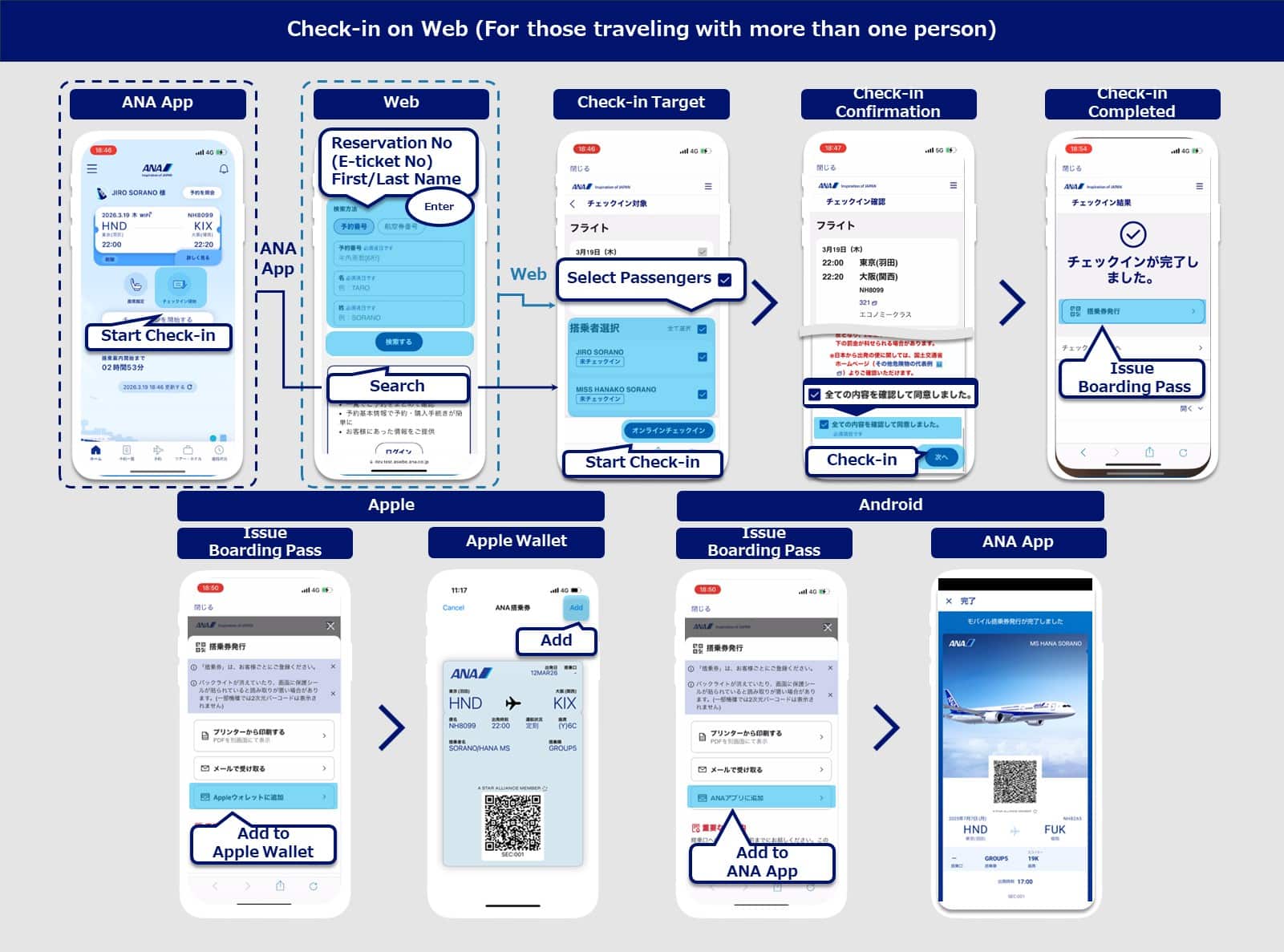
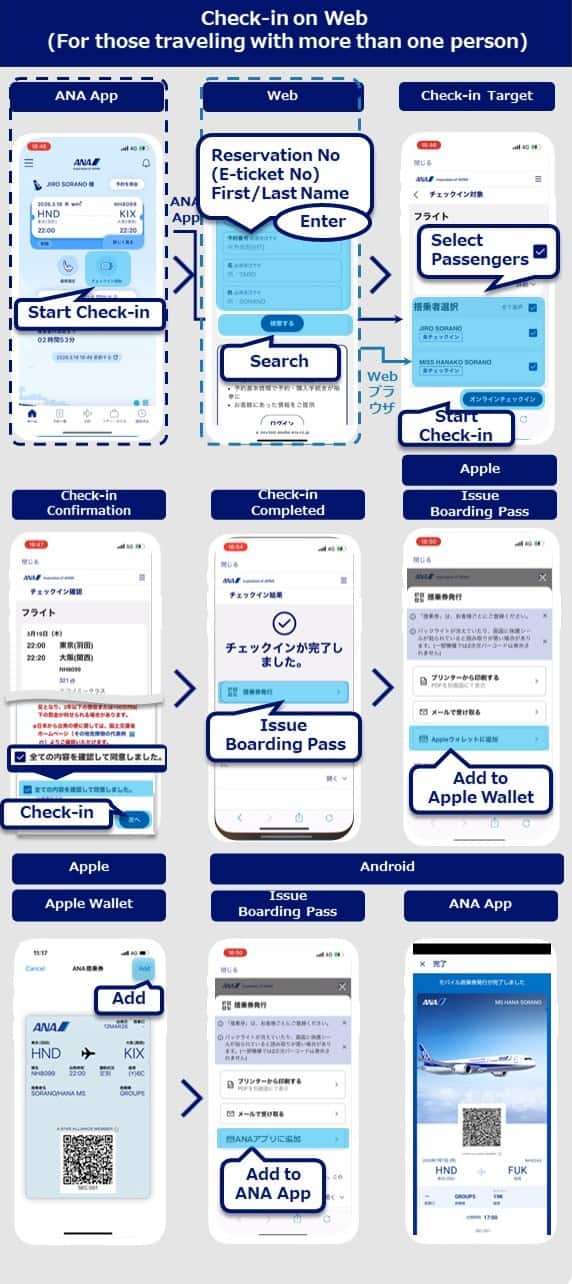
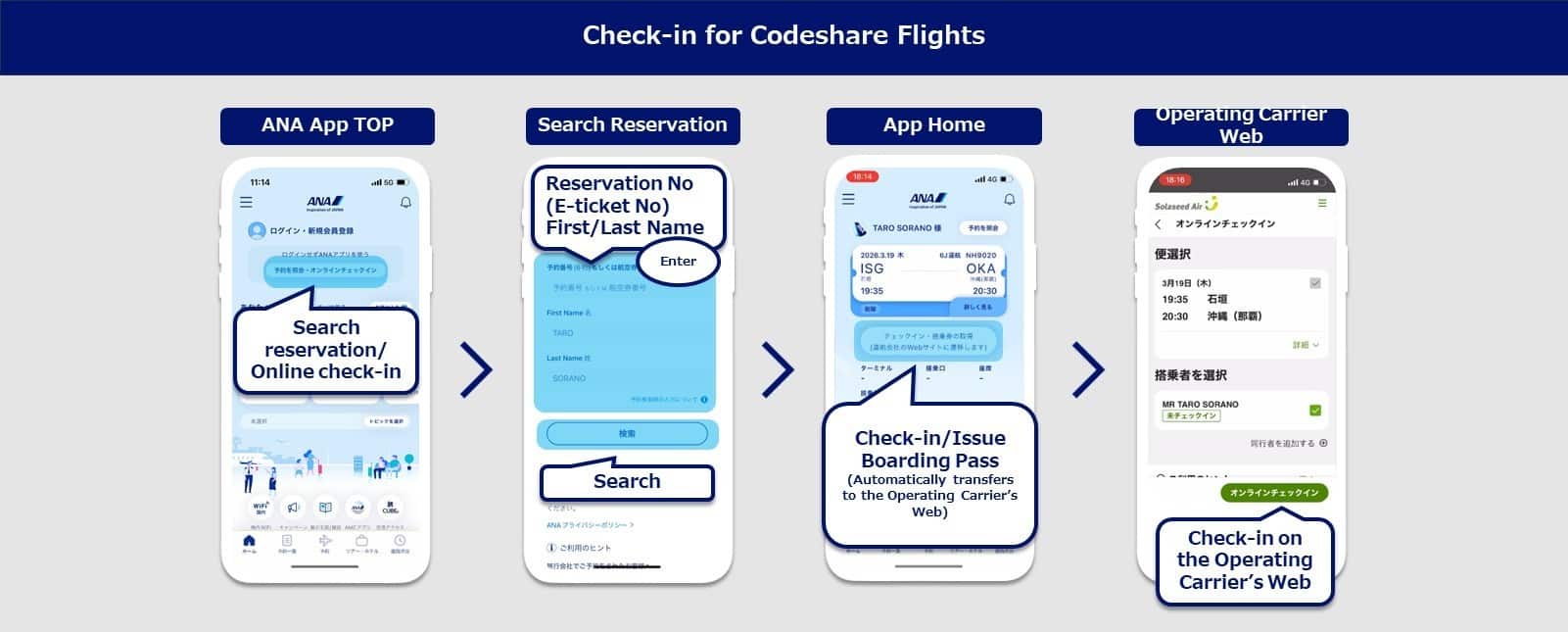
If you are using the ANA App, select "Check-in" on the ANA App TOP screen. If your reservation includes more than 1 person, you will move to the "Check-in Target" screen on web.
If you are using web, enter your "Reservation Number" or "e-Ticket Number" and "Name" on the "Online Check-in" screen and select "Search".
Select passengers to check-in on the "Check-in Target" screen.
If you have entered all the necessary information beforehand, you will move to the "Check-in Confirmation" screen. Check your check-in information and terms and conditions and select "Next".
Your check-in is completed. Select "Issue Boarding Pass".
Your standby request is completed.
Select "Go to Check-in Status", your standby request information is displayed on the "Check-in Status" screen.
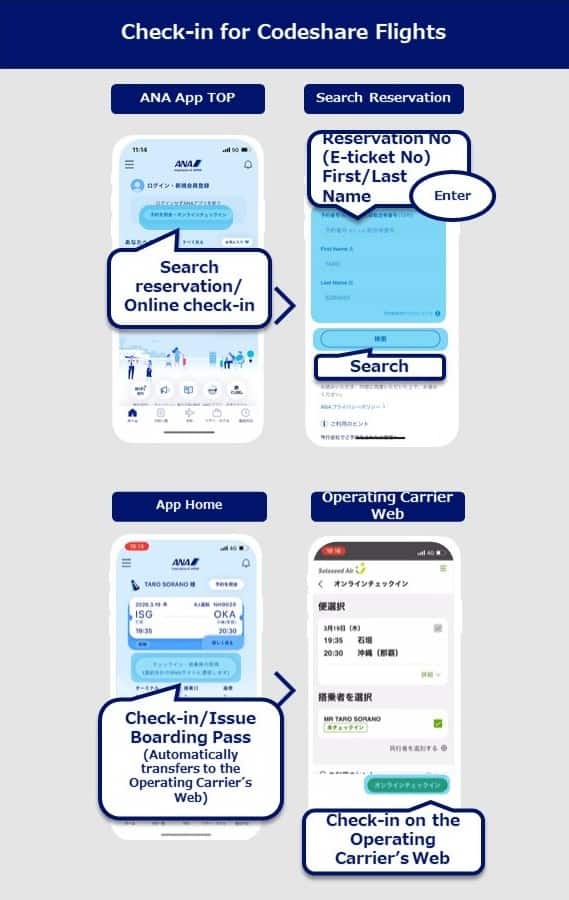
For code-share flights operated by partner airlines*1, online check-in will change to be conducted via the operating carrier's website.
Please complete the check-in using the URL provided in the "Check-in Information" that will be sent to you via email.
Online check-in will not be available via the ANA Website or ANA App.
Note that for codeshare flights operated by partner airlines, service is subject to the operating airline's regulations.
In addition, flight status information will also be sent by the operating airline.
See Code share flights for details regarding check-in procedures and services on codeshare flights.
Eligible partner airlines include AIRDO (ADO), Solaseed Air (SNJ), StarFlyer (SFJ), IBEX Airlines (IBX), and Oriental Air Bridge (ORC). Flights operated by operated by Japan Air Commuter (JAC) or Amakusa Airlines (AMX) are excluded.
After checking in online, please receive your boarding pass on your mobile device (mobile boarding pass), printing, or at the airport.
The types of boarding pass that can be used will differ by departure airport.
For passengers whose boarding passes cannot be issued in advance due to facility constraints at the departure airport, or for those who require additional confirmation regarding their boarding, please visit the airport counter on the day of departure to receive your boarding passes.
You can board by displaying the 2D barcode on your mobile device. (This cannot be printed out.)
The mobile boarding pass will be sent to your registered email address. Please use the mobile boarding pass image in the email (or alternatively download it from the URL provided).
You can register your mobile boarding pass by utilizing the iPhone (iOS 9.0 and above) Wallet application by Apple.
Passengers using a non-Apple device can register their mobile boarding pass on the ANA app.
Upon presenting the mobile boarding pass, the barcode may be difficult to scan if the backlight is turned off or the screen is covered by a protective film.
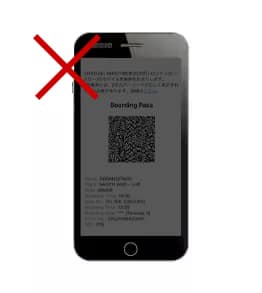
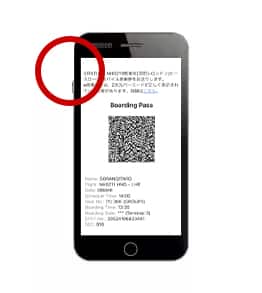
Please display the screen that shows both the 2D barcode and flight/passenger information. You may be unable to go through if you only display the 2D barcode.
Settings on some devices may result in the small display of the 2D barcode.
In this instance, it may not be possible to scan the 2D barcode, and airport staff may ask you to change the size or other relevant settings.
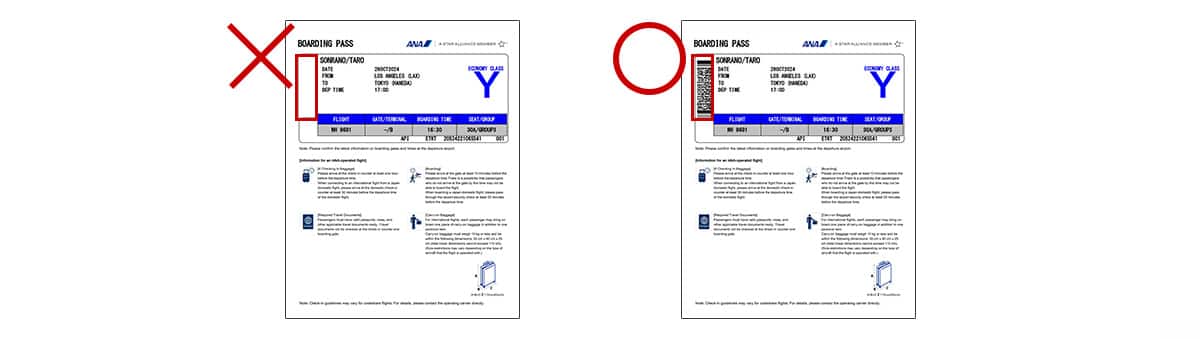
Print out your boarding pass and bring it with you on the departure date.
The 2D barcode must be printed on your boarding pass.
The check-in deadline is as follows. Please receive your boarding pass prior to the check-in deadline. Please be aware that check-in cannot be completed later these times.
20 minutes before departure
60 minutes before departure
For international flight check-in counter opening times by airport, please check ANA International Airport Check-in Counter Opening Times.
For more information on self-service check-in machines, please see below.
The types of boarding pass that can be used will differ by departure airport. Please check this information before you travel.
Passengers connecting from an ANA Group-operated international flight to a non-ANA Group flight cannot obtain boarding passes at the connecting airport, even if through check-in is complete. Please print out your boarding pass in advance, or obtain it on the departure date at the departure airport for your ANA Group-operated flight.
Mobile boarding passes cannot be used at the following airports. Please print out your boarding pass in advance, or obtain it on the departure date at the departure airport for your ANA Group-operated flight.
Mexico City
Vladivostok
Ho Chi Minh City
Neither mobile boarding passes nor printed boarding passes can be used at the airports below.
Please recieve your boarding pass at the departure airport with an ANA Group-operated fight on the day of your departure.
Seoul (Gimpo)
Shenzhen
Hanoi
Mumbai
Delhi
Jakarta
Manila
Please see below for details on airport procedures.
Please check your baggage at the self-service baggage drop machine or baggage drop counter before the boarding procedure deadline.
Go through with time to spare.
Please be at the gate 10 minutes before the departure time. Otherwise you will not be able to board.
Online Check-in is not available if the following cases apply.
Please complete the necessary procedures at the airport counter or a self-service check-in machine.
You have JAL flight tickets.
Information about your flight ticket cannot be confirmed online.
The fare at purchase is different from the applicable fare at check-in.
Advance upgrade fees have not been paid.
Reservations for a flight operated by another airline or have a connection from a flight operated by another airline.
As the various handling procedures will be different for flights operated by Japan Air Commuter and Amakusa Airlines, you are kindly requested to see the information on the Japan Air Commuter or Amakusa Airlines page before you travel on such flights.
Additionally, online check-in will be unavailable if check-in is suspended due to aircraft changes, etc.
We recommend confirming information on the Online Check-in, baggage, and other services to ensure things go more smoothly at the airport.
1
2
3
4
5
6
7
8
9
0
a
b
c
d
e
f
g
h
i
j
k
l
m
n
o
p
q
r
s
t
u
v
w
x
y
z
A
B
C
D
E
F
G
H
I
J
K
L
M
N
O
P
Q
R
S
T
U
V
W
X
Y
Z
All clear
Delete one character
By checking the Keep Me Logged In box on the login screen, you will not need to re-enter your membership number or password for subsequent logins.
The confirmation screen will reappear after closing all browser windows even if you checked "Do not show this screen again."

Please select the pictograms/numbers you received in the one-time password sent to
XXXXXXXxxx@gmail.com. They can be selected in any order.
Please do not close this window when checking your email.
If you have not received your one-time password
If you do not receive an email, please check your email receipt settings
and then have it re-sent.
If you do not do anything on the screen for a certain amount of time, you will have to request another one-time password.
If you do not receive an email, please check your email receipt settings
and then have it re-sent.
The confirmation screen will reappear after closing all browser windows even if you checked "Do not show this screen again."
ANA Biz is a business travel arrangement service.
MILES
ANA SKY COINS
Premium Point / Point on ANA /